Scan Setup
Scan Setup
A trigger is an event that executes a rule. The default ‘trigger’ for a new rule is the common scan time. Next to the manual trigger we have three automatic triggers available for each moving rule:
- Scan Timer
- Scheduled Events
- Change Notify (WIN as Source)
Scan Timer
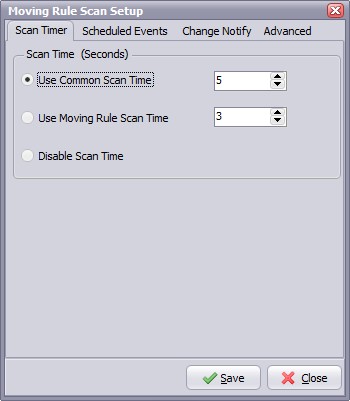
- Use Common Scan Time: The common scan time can be used by multiple moving rules. Changing the value of this timer will reflect on all rules where this timer is enabled.
- Use Moving Rule Scan Time: Use a different scan time for each moving rule. The moving rule scan time is used by the selected moving rule only. If 'Use Moving Rule Scan Time' is enabled then the common scan time is ignored (for the selected moving rule).
- Disable Scan Time: This will disable the scan time function for the selected moving rule. Useful if you only want to use Scheduled Events.
Scheduled Events
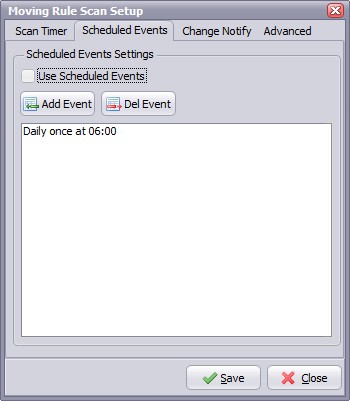
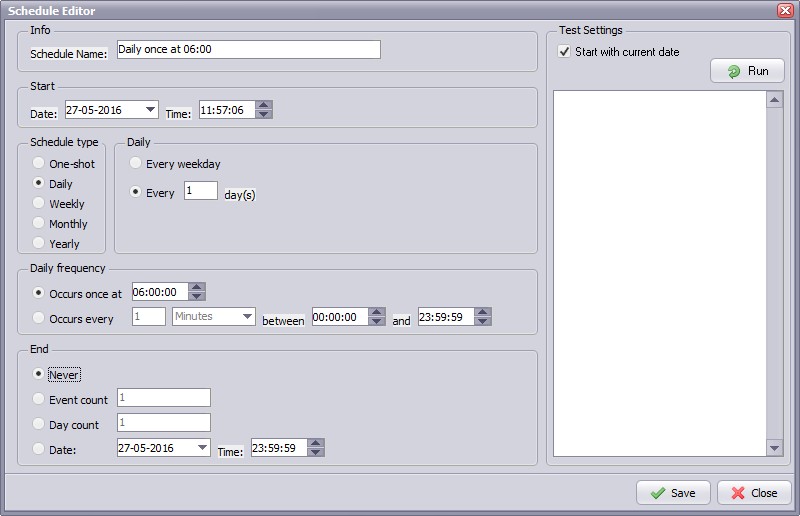
- Use Scheduled Events: Use Scheduled Events to trigger the selected moving rule.
Change Notify
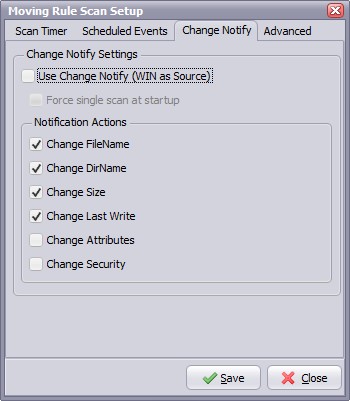
- Use Change Notify (WIN as Source): Use the OS change notify event to trigger the moving rule. Only for WIN as source.
- Force single scan at startup: This will trigger the rule at startup even if we don't get an notify event from the OS.
Advanced
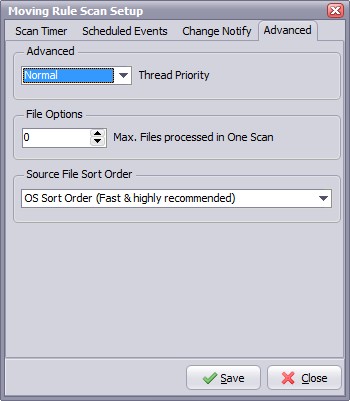
- Thread Priority: Priority indicates how much preference the thread gets when the operating system schedules CPU time among all the threads in your application. Use a high priority thread to handle time critical tasks, and a low priority thread to perform other tasks.
- Max. Files at Once: Maximum files that LimagitoX will pickup during a scan (default = 0 = No Limit).
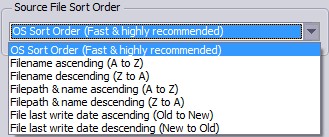
- Source File Sort Order: Let you change the way files are handled during output. (default = OS Sort Order = Fast & highly recommended).
Copyright © 2007-2016, www.limagito.com