• 16 May

    How to pick files from user’s Desktop/Export folder

    Q: I am trying to create a rule where we need to pick files from user’s Desktop/Export folder, and the computer has several different users. The path goes like this \\<hostname>\C$\Users\<userid>\Desktop\Export\. I want the <userid> as a wild card where Limagito can monitor all the Desktop\Export path under all the users. I would really appreciate any suggestions on how to handle this. Thanks!

    A: This is possible using our scripting option.

    • Start with the following Windows as Source option:
      • Set  %VSA  as Directory, %VSA = Variable String A
      • %VSA will be set by our Pascal Script option

    limagito filemover windows folder as source option

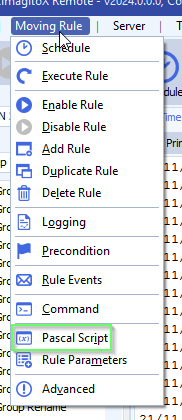
    •  Open our Pascal Script option:

    limagito filemover pascal script option

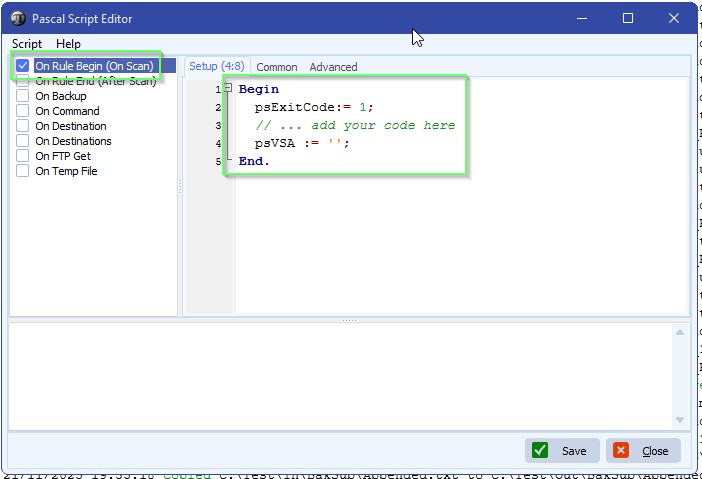
    • Enable and add the following ‘On Rule Begin’ script:
      • You can download the script here
      • Do not forget to adjust the ‘ctUsersDir’ Const
      • This script will list all users and check if they have an ‘Export’ folder on their Desktop

    limagito filemover pick files user’s Desktop script

    • You can add any file or directory filter if needed, that is up to you.
    • Select the Function and if you would choose ‘Copy’ then do not forget to enable our File Memory option otherwise you would copy the same files over and over  again.
    • Destination Setup:
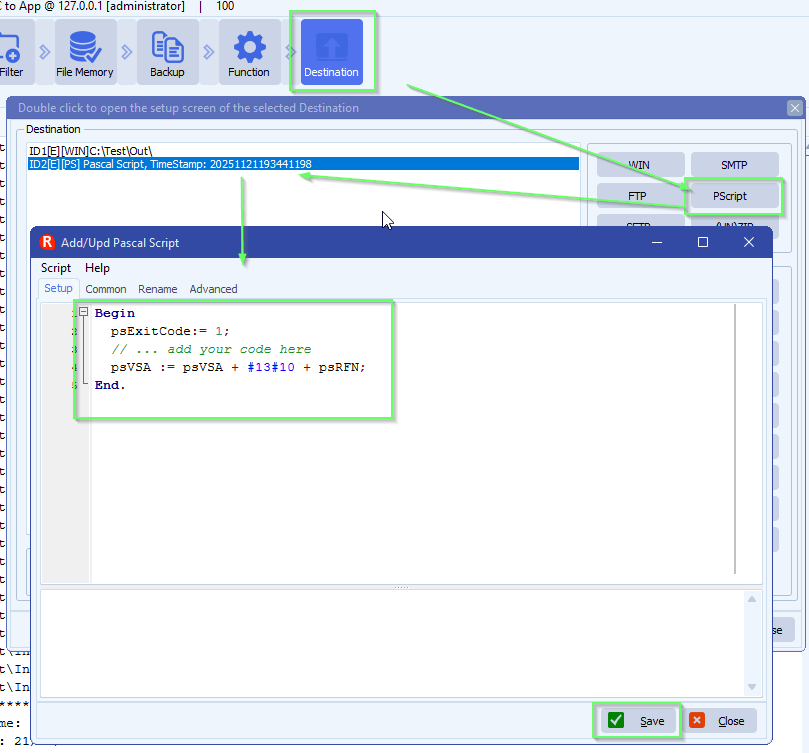
      • First Destination must be ‘Pascal Script’ (PScript).
      • Second Destination, we used a Windows folder but you can use other too.

    limagito filemover destination setup

    • First Destination: Pascal Script
      • You can download the script here
      • The script will strip the UserID from the FileDir and put it into %VSB (= Var String B)

    limagito filemover pascalscript as destination

    • Second Destination, Windows Folder:

    limagito filemover windows folder as destination

    • Set the ‘Create Subdir’ to:  %VSB\%SFS
      • %VSB will contain the UserID

    limagito filemover windows subfolder as destination

    If you need any help about this ‘pick files user’s Desktop’ request, please let us know.

    Best Regards,

    Limagito Team

    #managedfiletransfer #filetransfer #filemanagement #limagito

  • 26 Apr

    Source file parsing and vlookup configuration

    Q: Source file parsing request:
    It was a pleasure meeting you this morning, we had a productive time upgrading our lower-environment server.
    Now, I have a specific requirement, I want to know if this is doable in Limagito?
    I have attached 3 source log files, and an Excel file for lookup values.
    Let me know what is possible and what isn’t.
    Your help would be appreciated.
           Requirement is.
    1. Get a portion of the sourcefilename
      -Filename is: 3294006586260310100730.log
      -get 7th position and is 4 digits in length (is the instrument-Slno)
      -Lookup for slno in the csv file for a possible match
      -in the 1st column (match just the 1st 4 digits alone)
      -and get the associated value in the 2nd column.             (VAR-1)
      -if there isn’t a match, then assign ‘Default‘ to VAR-1
    2. Open source-file
      -and lookup for a static-string ‘Donation ID’:
      -and get the associated value which is on the same line. (VAR-2)
      -if there isn’t a match, then assign ‘None‘ to VAR-2
      -if there are any backward or forward slashes within the value, replace it with space
    3. Rename the Target file name.
      -with the original Primary name
      -and suffix it with ‘-‘
      -and suffix it with (VAR-2)
      -and suffix it with ‘-‘
      -and suffix it with (VAR-1)
      -File Extension should be ‘.TXT
    1. Create a folder with the name (VAR-1) on the Target path and drop the associated renamed file in it.

    A: Yes this is possible using our srcipting option.

    • The Source must be a Windows folder (or share):

    limagito filemover windows folder or share as source

    • As file filter we used *.log because we only need to search for log files:

    limagito filemover file filter setup

    • Open our Pascal Script option:

    limagito filemover pascal script option

    • Enable and add the following ‘On Rule Begin’ script:
      • This script will load the content of the ‘AssetID_with_SerialNumber.csv’ file. You can adjust the ctCsvFile const if needed.
      • It must be a csv file
      • You can download the script here

    limagito filemover pascal script source file parsing

    • Funtion setup:
      • We are using ‘Move Files’ in our test setup
      • If you want to keep the files in the source then
        • Select ‘Copy Files’ instead
        • Enable our File Memory option! This way we will only copy the same file once.

    limagito filemover function setup

    • Destination Setup
      • First Destination MUST be our Pascal Script option
      • Second Destination is the destination folder of moved log files

    limagito file mover destination setup

    • First Destination: Pascal Script
      • You can download the script here
      • The script will strip an ID from the source filename (Char 7 – 10)
      • This ID will be used to get the ‘AssetID’ from the csv file
      • AssetID will be used to parse the source file for the ‘Donation ID’ information
        • / and  \ will be replaced with a space
        • Invalid directory char will be removed

    limagito filemover source file parsing

    • Second Destination: We used a Windows Folder but can be any other destination type

    limagito file mover windows folder as destination

    • Adjust ‘Create Subdir, opt.’ to:  %VSB\%SFS
      • %VSB var contains the AssetID parsed from the csv file

    limagito filemover file and directory setup

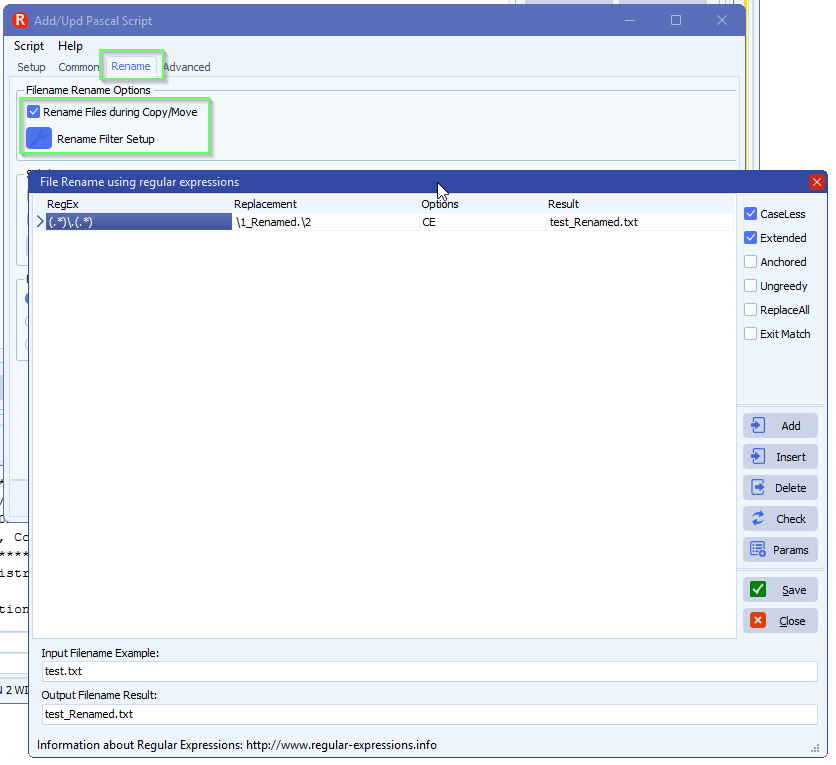
    • Enable ‘Rename Files during Copy/Move’ option:

    limagito filemover file renaming option

    • File Rename setup:
      • RegEx:  (.*)\.(.*)
      • Replacement:  \1-%VSC-%VSB.log
        • Filename will be renamed and extension will change from .log to .txt

    limagito filemover file renaming setup

    • RunTime Log result:

    limagito file mover runtime log result

    If you need any help about this ‘source file parsing’ request, please let us know.

    Best Regards,

    Limagito Team

    #csv #managedfiletransfer #filetransfer #filemanagement #limagito
  • 14 Apr

    How to use Microsoft Graph API with OneDrive as source and destination

    Using Microsoft Graph API with OneDrive

    On request we added support for Microsoft Graph as API method in version v2026.4.14.0.

    Limagito FileMover Setup

    • Setup
      • Graph Url is fixed, should be https://graphMicrosoft.com
      • Set Directory, in our example: /Attachements
      • Select the Auth Type you will be using, check the previous blog articles:
        • Online Authentication using Client Credentials without User Dialog
          • This means ‘Application permissions’ in your Azure App Registration
        • OAuth 2.0 authorization code flow
          • This means ‘Delegated permissions’ in your Azure App Registration


    • The following example uses ‘Online Authentication using Client Credentials without User Dialog’
      • In this case, you need to add the User Principal Name (email address, example: user@contoso.com)
      • Do not forget to add Graph Application permissions in your Azure App Registration

    limagito file mover Microsoft Graph API with OneDrive

    • OAuth2 setup:
      • Enable ‘Code Challenge’
      • Enable ‘Include Nonce’
      • Leave ‘Authorization Endpoint URL’ empty, not used with ‘Online Authentication using Client Credentials without User Dialog’
      • Set ‘Token Endpoint URL’
        • https://login.microsoftonline.com/%realm/oauth2/v2.0/token
        • %realm will be replaced by the Realm value = Directory (tenant) ID. You can also enter the full URL including the Tenant.
      • Enter your Client ID and Client Secret
        • Azure > App Registrations > Select the App you created > Use ‘Application (client) ID’ as Client ID in Limagito OneDrive OAuth2 setup
      • Azure > Certificates & Secrets > Client secrets > Use ‘Value’ field as Client Secret in Limagito OneDrive OAuth2 setup
      • Set ‘Scope’ to: https://graph.microsoft.com/.default
        • Don’t forget to add “File.ReadWrite” to the Permissions in your Azure setup.
          • Permissions Type must be Delegated with “OAuth 2.0 authorization code flow”
          • Permissions Type must be Application with “Online Authentication using Client Credentials without User Dialog”
          • FYI: Delegated permissions, also called scopes, allow the application to act on behalf of the signed-in user.
      • Leave Resource empty
      • Leave Response Mode empty to omit the default response_mode “query” param.
      • Leave Response Type empty, this way the default value “code” will be used.
      • Redirect URI is not used with ‘Online Authentication using Client Credentials without User Dialog’
      • When using %realm in the ‘Authorization or Token Endpoint URL’
        • Please set ‘Realm’ to your Tenant of Tenant_ID

    limagito file mover onedrive oauth2 setup

    If you need any help about this ‘microsoft Graph API with OneDrive’ option, please let us know.

    Best Regards,

    Limagito Team

    #onedrive #managedfiletransfer #filetransfer #filemanagement #limagito
    By Limagito-Team OneDrive ,
1 2 3 4 6
SEARCH