
Using Microsoft Graph API with SharePoint
On request we added support for Microsoft Graph as API method in version v2026.4.11.0. So, from this version on we support:
- Sharepoint REST API (legacy)
- Microsoft Graph API
Limagito FileMover Setup
- Setup
- Set Site Url and Directory
- Select the Auth Type you will be using, check the previous blog articles:
- Online Authentication (SPOIDCRL) > deprecated by Microsoft (fully disabled on May 1, 2026)
- Classic Authentication (NTLM) > deprecated by Microsoft
- Online Authentication using Client Credentials without User Dialog
- Online Authentication using OAuth2
- OAuth 2.0 authorization code flow

- Set “Microsoft Graph API’ as API Method
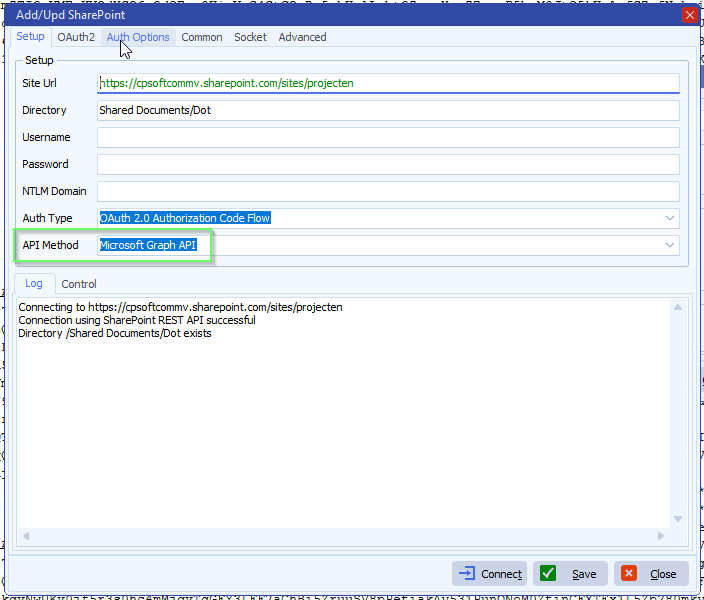
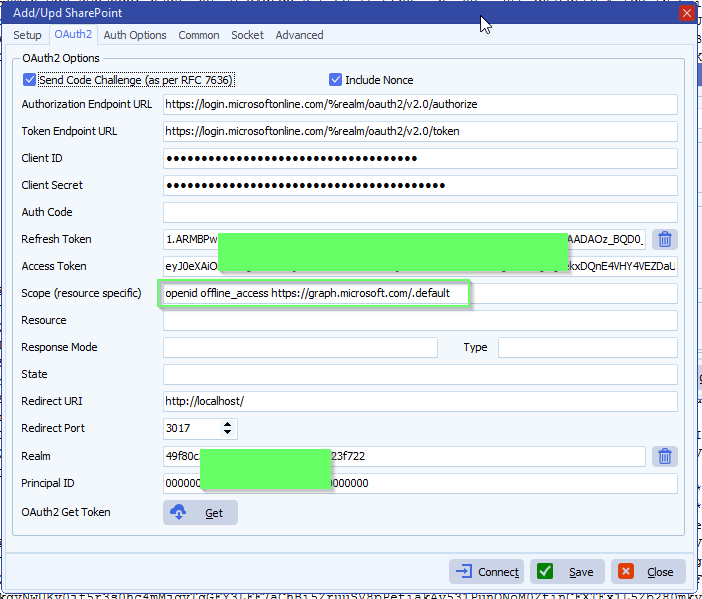
- OAuth2 setup:
- Enable ‘Code Challenge’
- Enable ‘Include Nonce’
- Set ‘Authorization Endpoint URL’https://login.microsoftonline.com/%realm/oauth2/v2.0/authorize
- %realm will be replaced by the Realm value (= Tenant or Tenant_ID). You can also enter the full URL including the Tenant.
- Set ‘Token Endpoint URL’
- https://login.microsoftonline.com/%realm/oauth2/v2.0/token
- %realm will be replaced by the Realm value (= Tenant or Tenant_ID). You can also enter the full URL including the Tenant.
- Enter your Client ID and Client Secret (please check the article howto create them)
- Azure > App Registrations > Select the App you created > Use ‘Application (client) ID’ as Client ID in Limagito SharePoint OAuth2 setup
- Azure > Cerificates & Secrets > Client secrets > Use ‘Value’ field as Client Secret in Limagito SharePoint OAuth2 setup
- Set ‘Scope’ to: openid offline_access https://graph.microsoft.com/.default
- Replace the YourSite part with the <Tenant> name you are using.
- Don’t forget to add “Sites.ReadWrite.All” to the Permissions in your Azure setup.
- Permissions Type must be Application with “OAuth 2.0 authorization code flow”
- Permissions Type must be Delegated with “Online Authentication using Client Credentials without User Dialog”
- FYI: Delegated permissions, also called scopes, allow the application to act on behalf of the signed-in user.
- An alternative could be: openid offline_access https://graph.microsoft.com/Sites.ReadWrite.All
- Leave Resource empty
- Leave Response Mode empty to omit the default response_mode “query” param.
- Leave Response Type empty, this way the default value “code” will be used.
- The Redirect URI should be http://localhost/ (and not https://localhost/)
- Be sure to add the redirect URI in Azure too, combined with the Redirect Port in the example it would be: http://localhost:3017
- Check if you selected “Web” as Redirect URI Type in Azure (do not use mobile & desktop or SPA)
- When using %realm in the ‘Authorization or Token Endpoint URL’
- Please set ‘Realm’ to your Tenant of Tenant_ID
If you need any help about this ‘microsoft Graph API with SharePoint’ option, please let us know.
Best Regards,
Limagito Team
# sharepoint #managedfiletransfer #filetransfer #filemanagement #limagito