365

  • 14 Mar

    Office 365 SMTP OAuth2 Client Credentials Authentication with Certificate

    Office 365 SMTP OAuth2 Client Credentials Authentication with Certificate Authentication

    For use with Limagito File Mover requiring app-only SMTP access

    We recently added SMTP authentication using a private key file to our ‘SMTP as destination’ option. We did this already with Azure and Sharepoint.

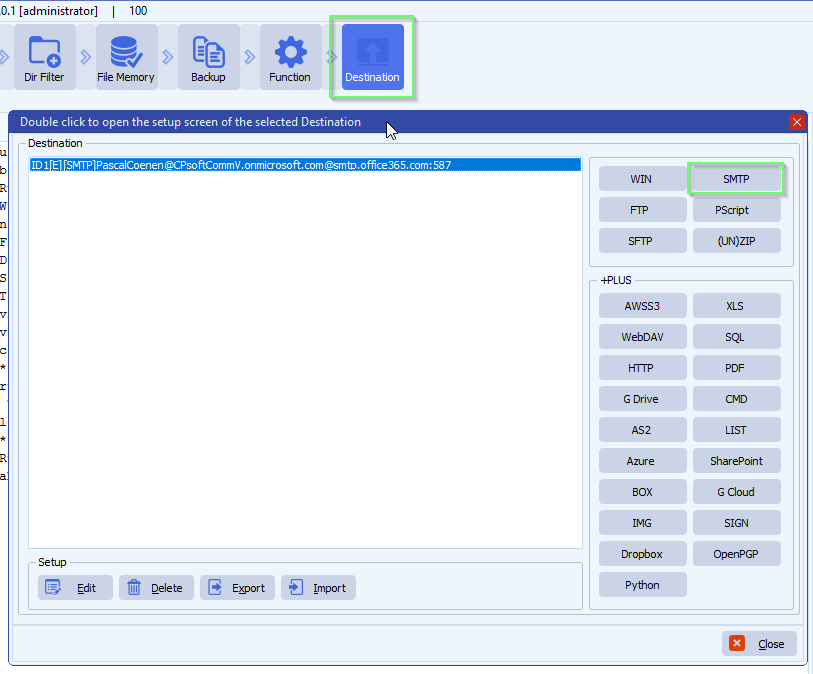
    • Destination Setup > Add <SMTP>

    limagito file mover smtp as destination

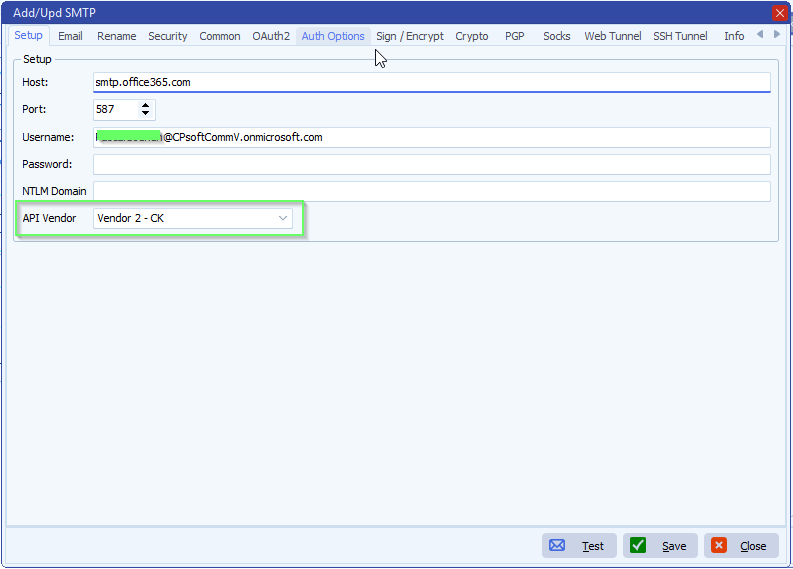
    • Be sure to use Vendor 2 – CK

    limagito filemover smtp as destination setup

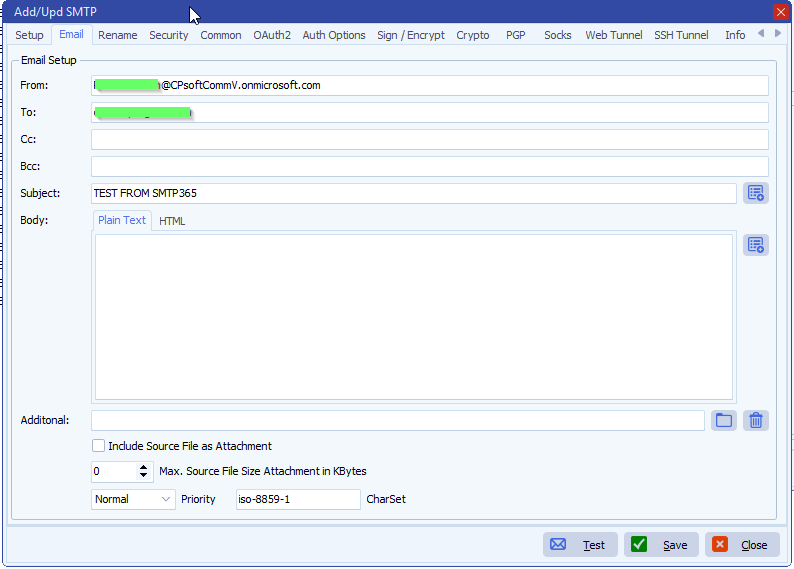
    • Email setup:

    limagito filemover smtp email setup

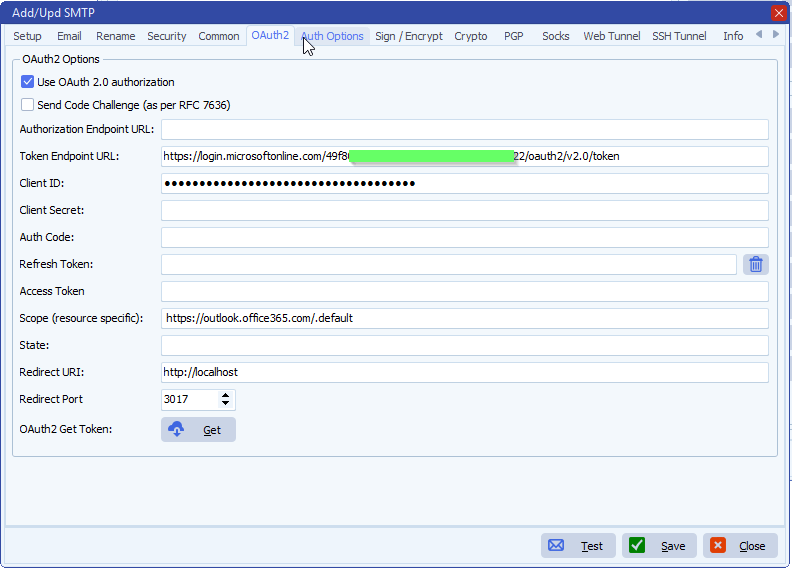
    • OAuth2 Setup:
      • If you prefer to use a Client Secret instead of a Certificate then you need to add it here
      • We left the Client Secret blanc because we are going to use a Certificate

    limagito file mover smtp oauth2 setup

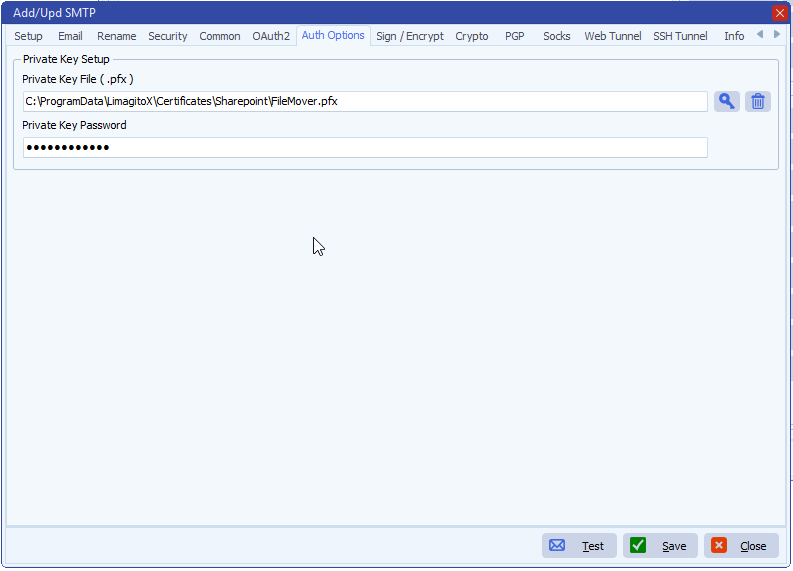
    limagito file mover smtp authentication options

    – Some Azure Screenshots used in the previous document:

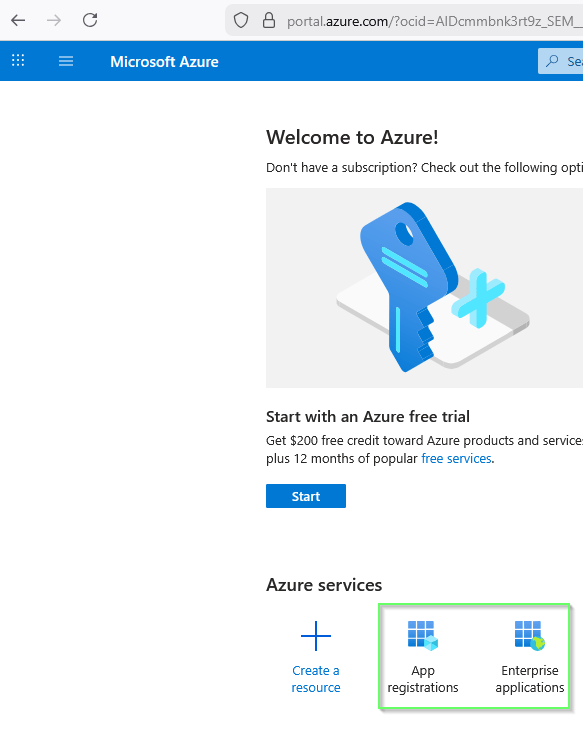
    limagito filemover azure setup


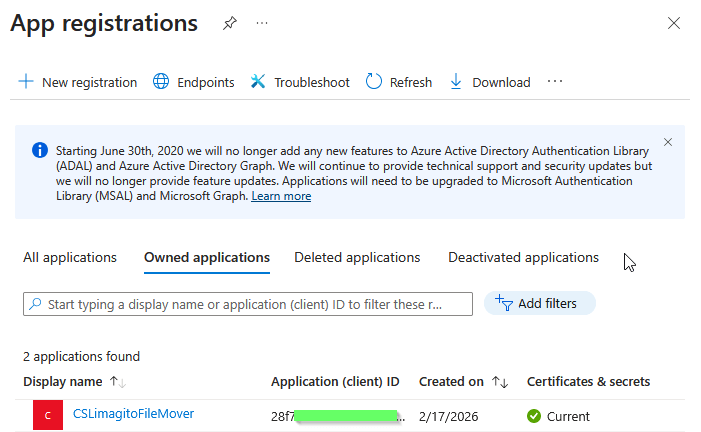
    • Azure App registrations:
      • Add a new registration here

    limagito filemover azure app registrations

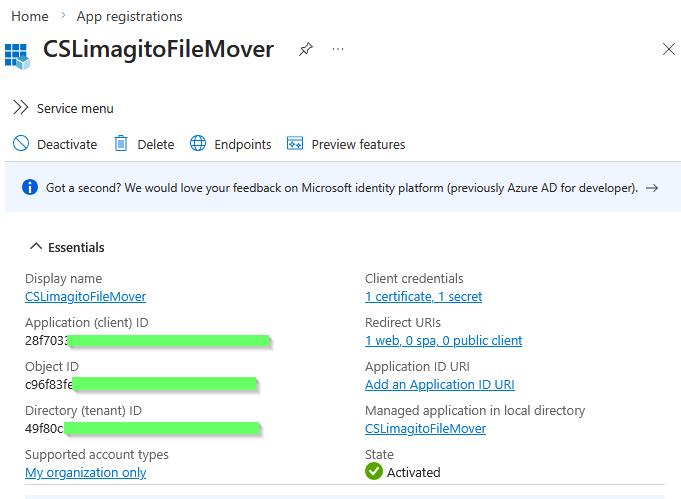
    • Application (client) ID and Directory (tenant) ID will be needed in the SMTP OAuth2 setup.

    limagito filemover app registrations

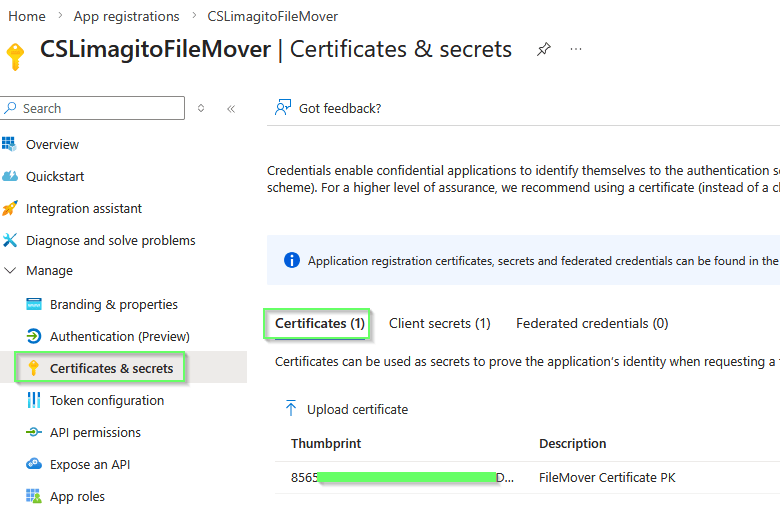
    • Azure App registrations > Certificates & secrets
      • We used a Certificate but also a Client secret is possible, this is up to you.

    limagito filemover azure certificates and secrets

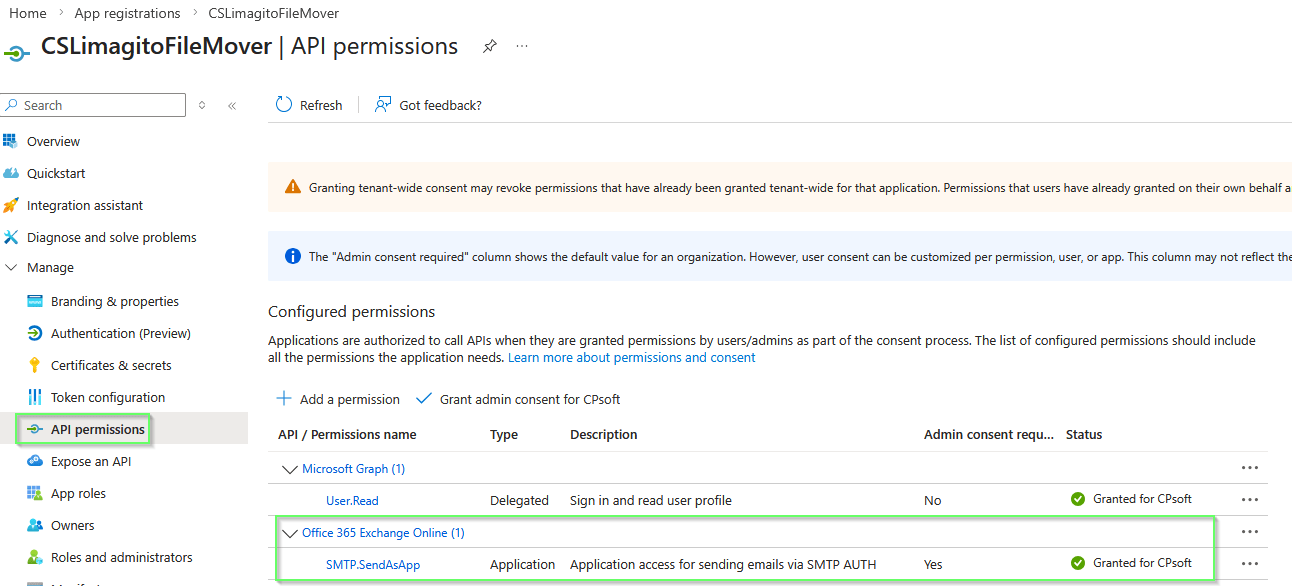
    • Azure App registrations > API permissions

    limagito filemover azure API permissions

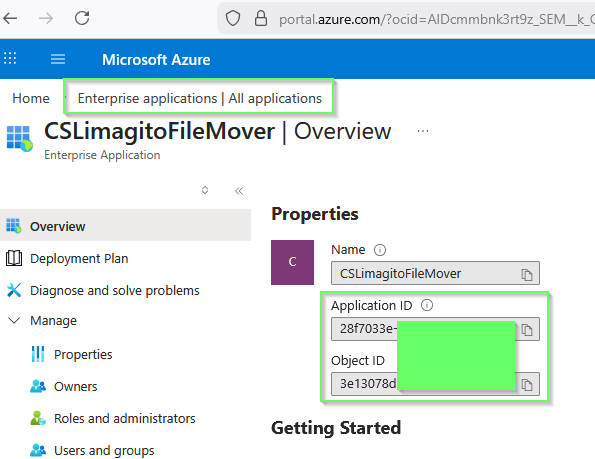
    • Enterprise applications
      • Your App registration will be available under ‘Enterprise applications’
      • Application ID and Object ID will be used in the PowerShell commands of the Setup Guide.

    limagito filemover azure enterprise applications

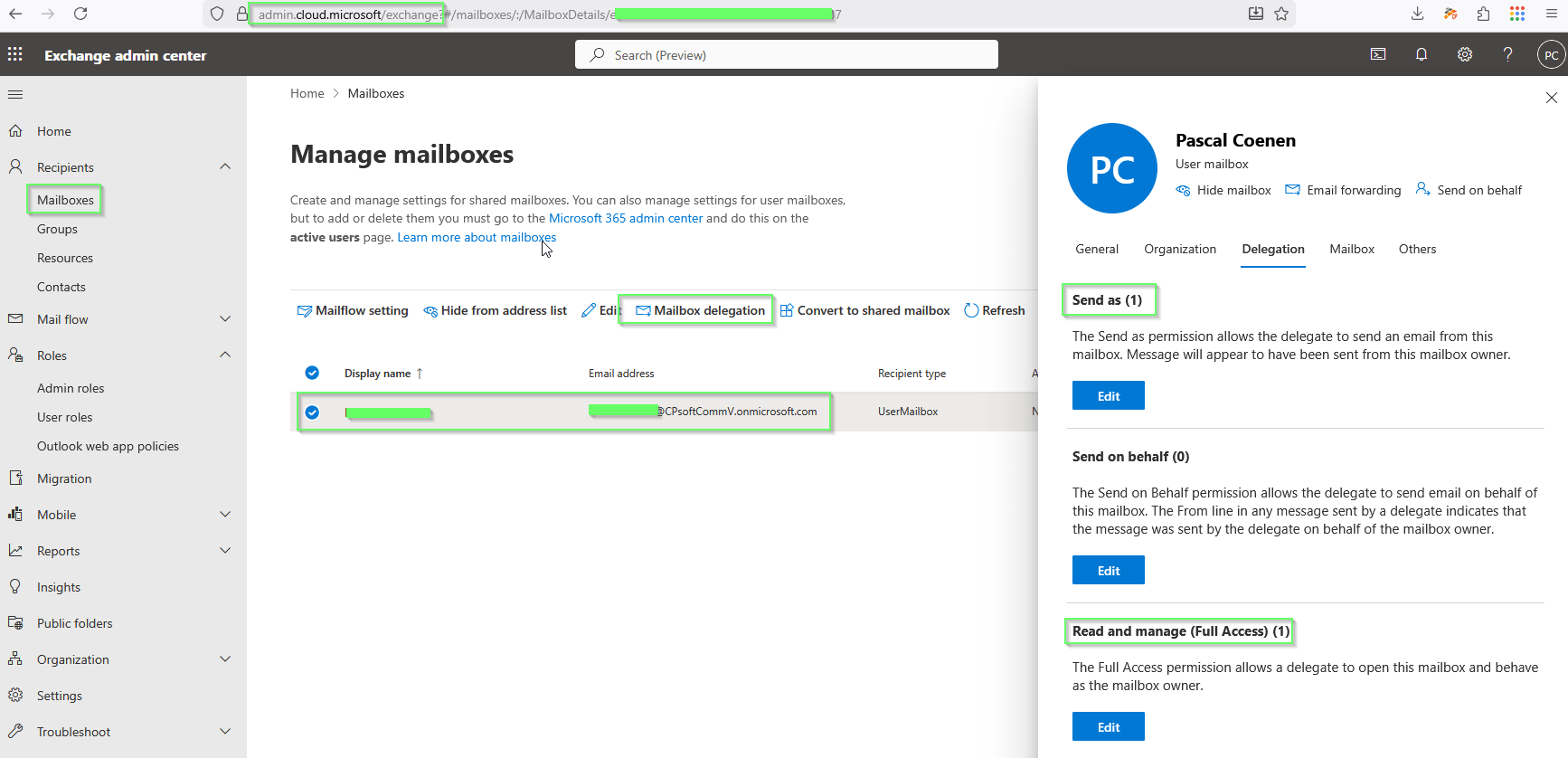
    • Exchange admin center > Recipients > Mailboxes
      • After using the PowerShell commands you should see
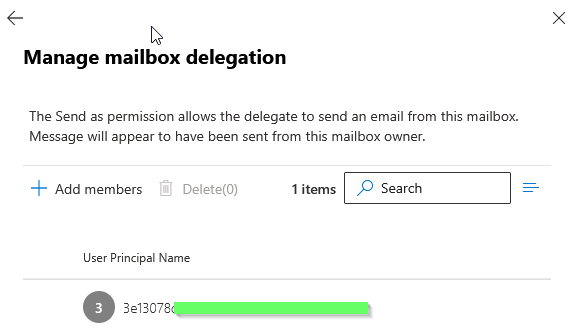
        • Send as (1)
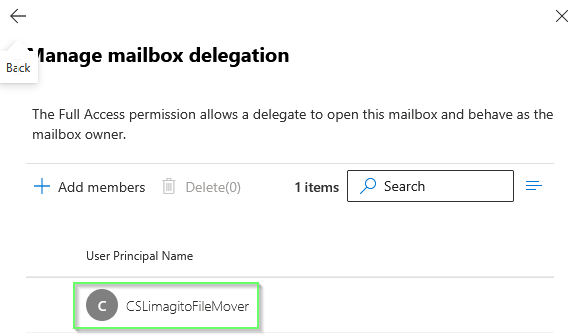
        • Read and manage (Full Access) (1)
      • They both should contain a reference to the App registration used

    limagito filemover azure exchange admin center

    limagito filemover exchange admin center

    limagito filemover exchange admin center

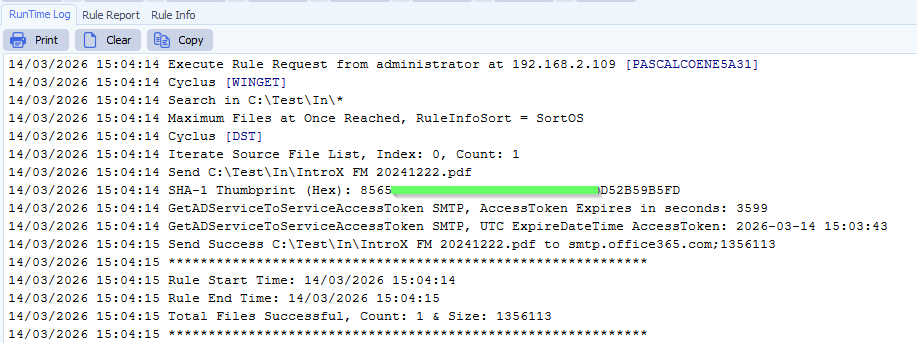
    • RunTime Log Result:

    limagito filemover smtp runtime log result


    If you need any help with this ‘SMTP OAuth2 Client Credentials Authentication’ setup, please let us know.

    Best Regards,

    Limagito Team

    #smtp #filemover #managedfiletransfer #filetransfer #filemanagement

  • 27 Jun

    Sending an email using Office 365 SMTP and OAuth2 authentication

    Q: Sending an email using Office 365 SMTP and OAuth2 authentication

    “AZURE setup”
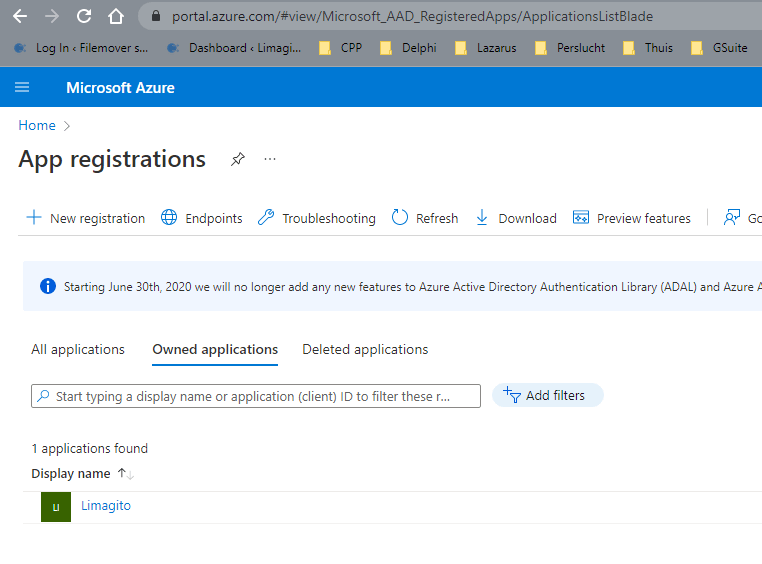
    Azure App registrations

    • Register the app with Redirect URI = “http://localhost:3017”.
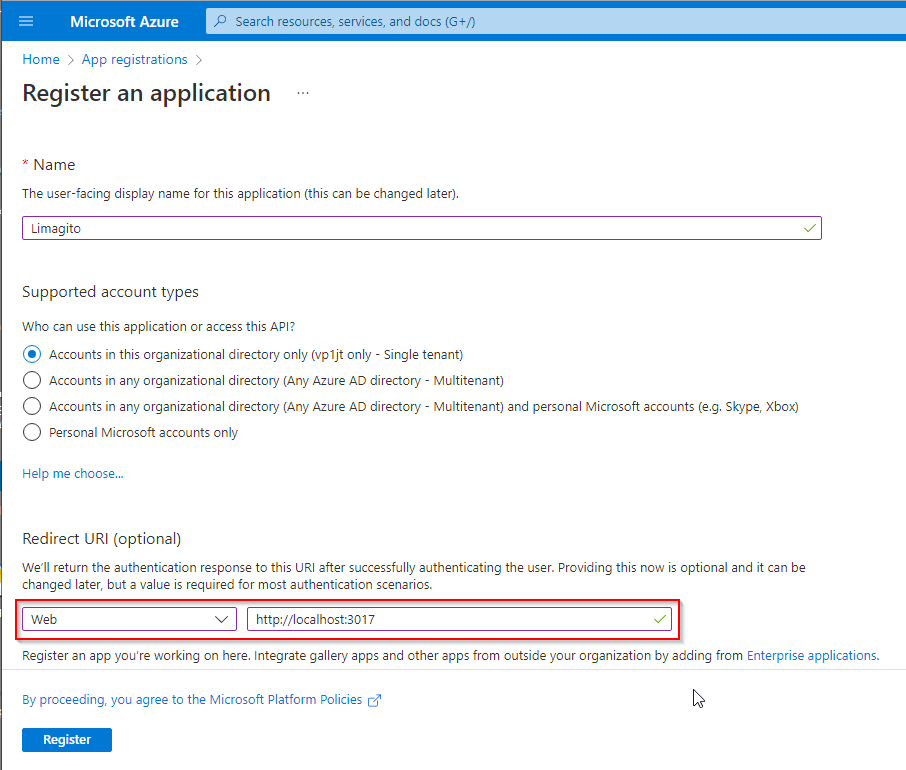
    Azure Register an application

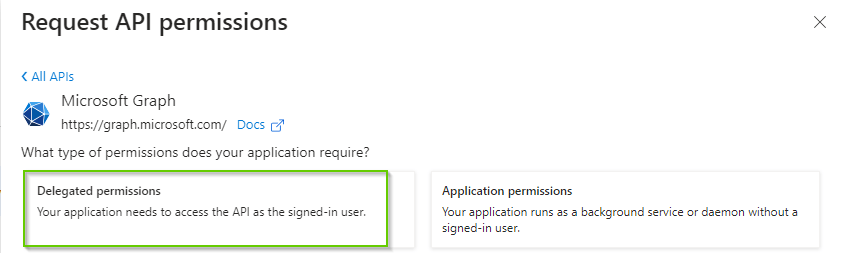
    • Goto “API permissions” to add permissions. For this SMTP and OAuth2 authorization flow, we’ll add the following “Delegated permissions”:
      • offline_access
      • openid
      • SMTP.Send
      • IMAP.AccessAsUser.All is there because of a previous test (not needed for SMTP)
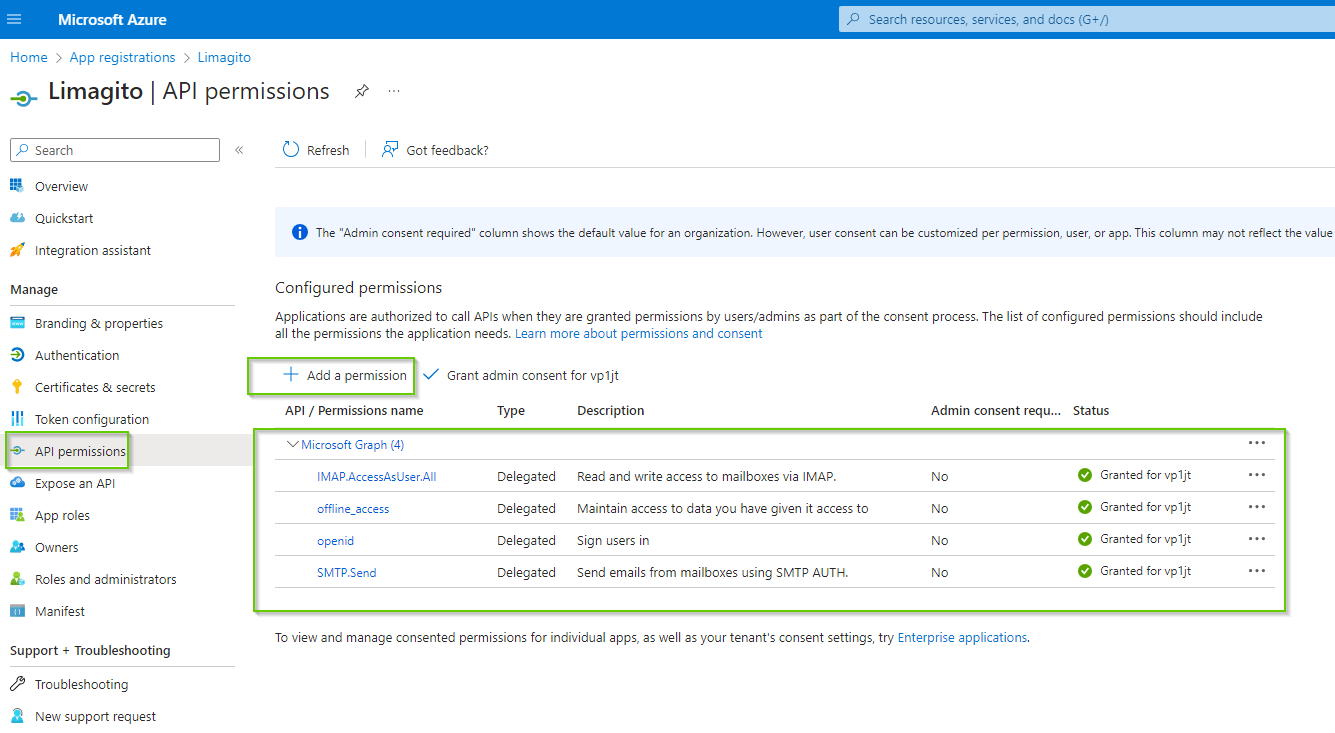
    limagito file mover azure add permissions

    • To add a Delegated permission, click ‘+ Add a permission’ and select ‘Microsoft Graph’
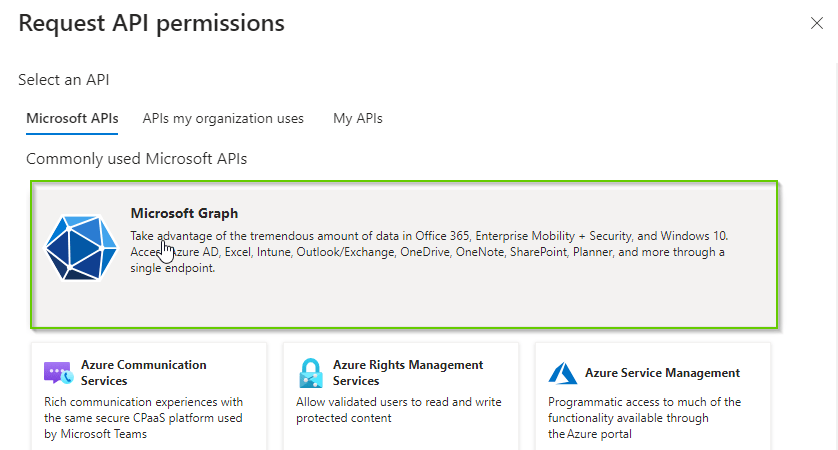
    limagito file mover azure add deligated permission


    • Select ‘Delegated permissions’

    limagito file mover azure add deligated permission

    • Search for the different permissions, select and click ‘Add Permissions’.
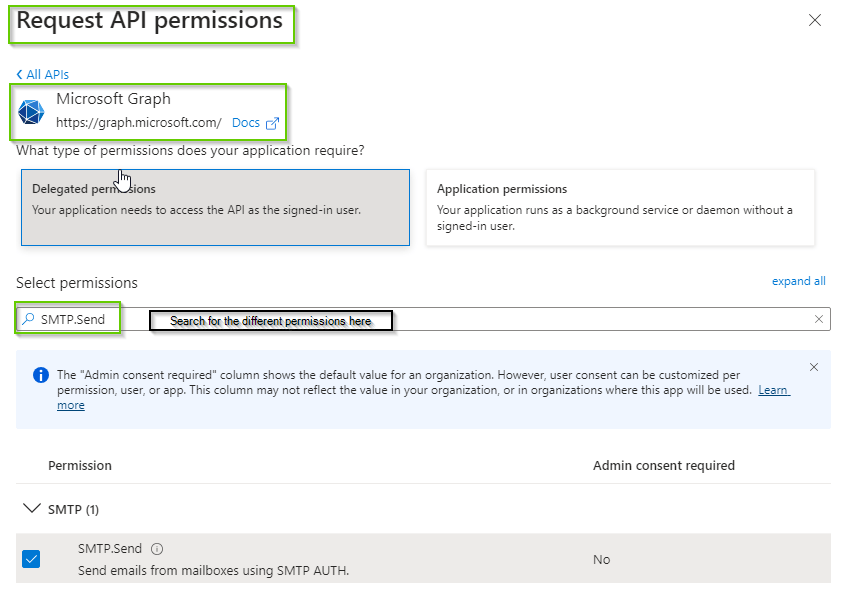
    limagito file mover azure add a deligated permission

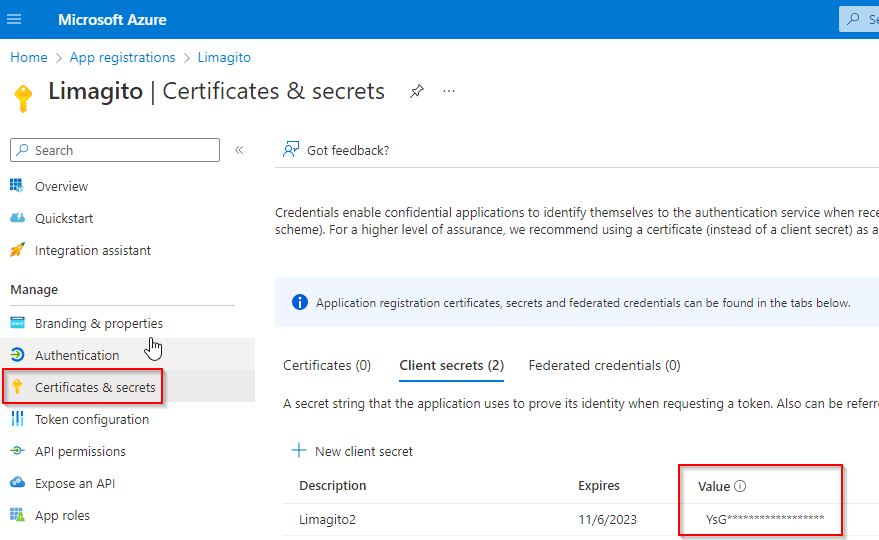
    4) Go to “Certificates & secrets” and add a new client secret.

    • Important, the ‘Value’ field is the Client Secret which we need later during the setup in Limagito File Mover. This Value is only fully visible just after creation!
    • Do not use the Secret ID (common mistake).
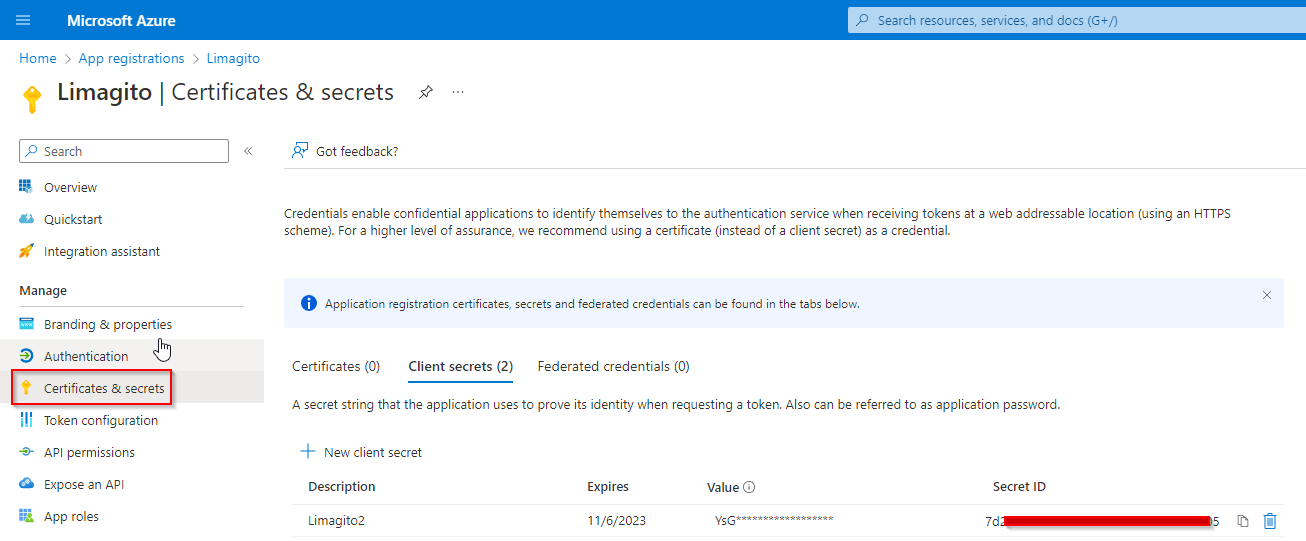
    Azure Certificates & secrets

    5) In “App registrations”, go to “Endpoints” (located to the right of the “+ New registration” link. Note your endpoints for “OAuth 2.0 authorization endpoint (v2)” and “OAuth 2.0 token endpoint (v2).
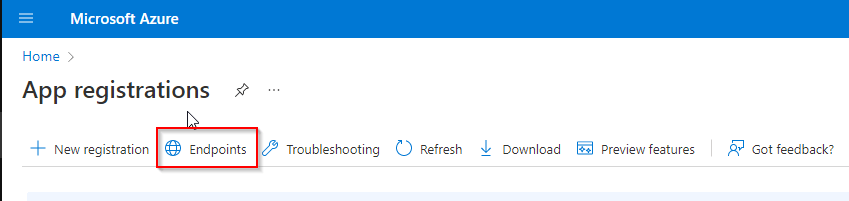
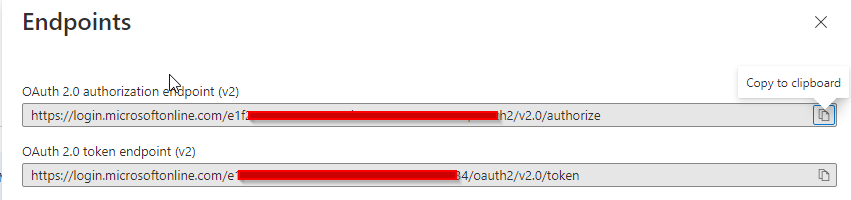
    Azure Endpoints

    Azure endpoints

    “Microsoft 365 admin center setup”

    • Important, go to your Microsoft 365 admin center (this is NOT Azure).
      • Go to your Active users.
      • Click on a user to find the “Manage email apps” link under the Mail Tab. See Microsoft 365 Manage Email Apps.
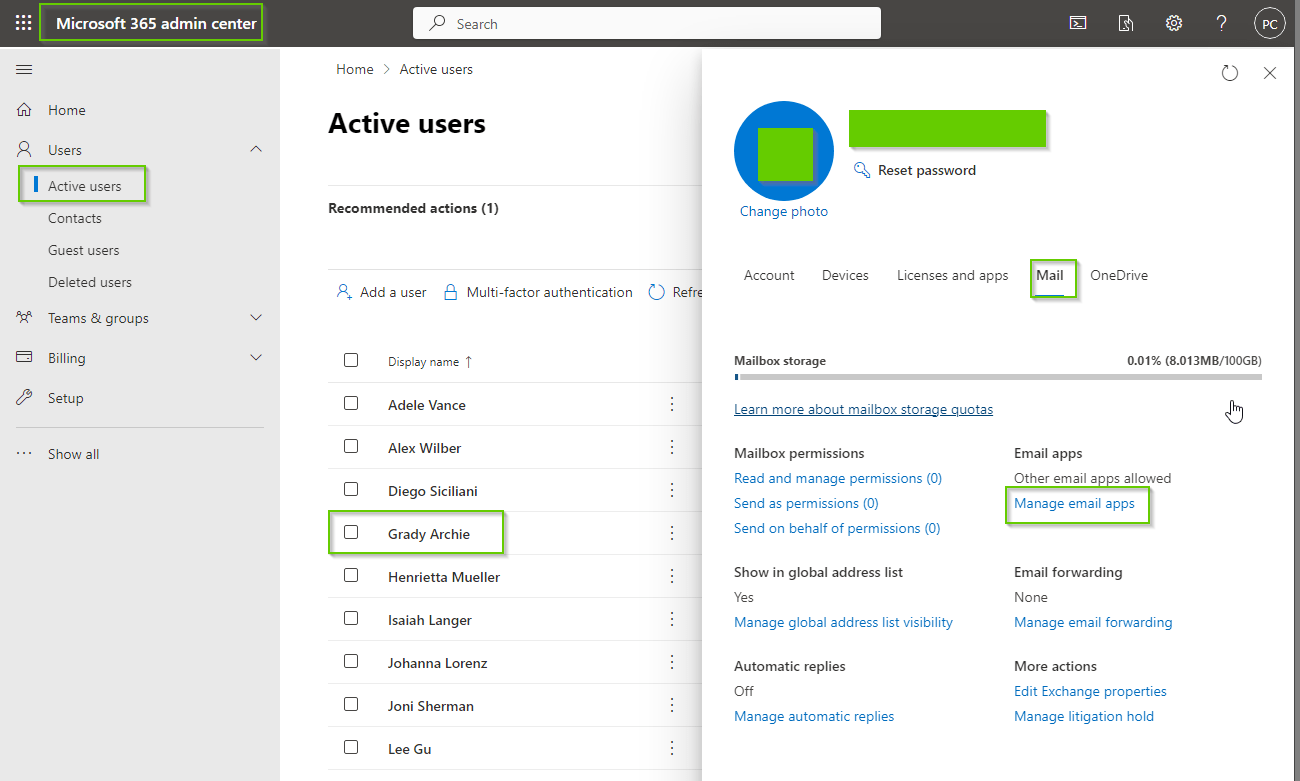
    microsoft 365 admin center

    • Be sure ‘Authenticated SMTP’ is enabled
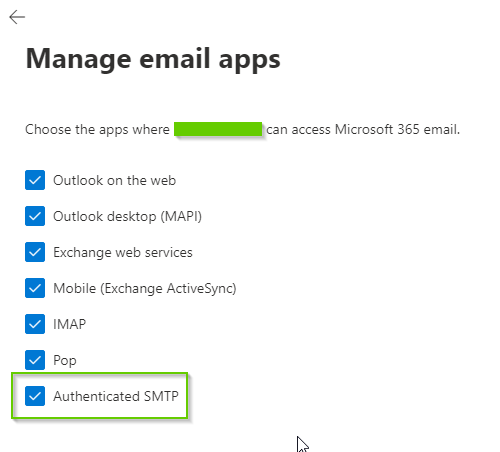
    limagito file mover microsoft admin center

    • When not enabled you’ll receive the following error message after trying to send an email using Limagito File Mover:
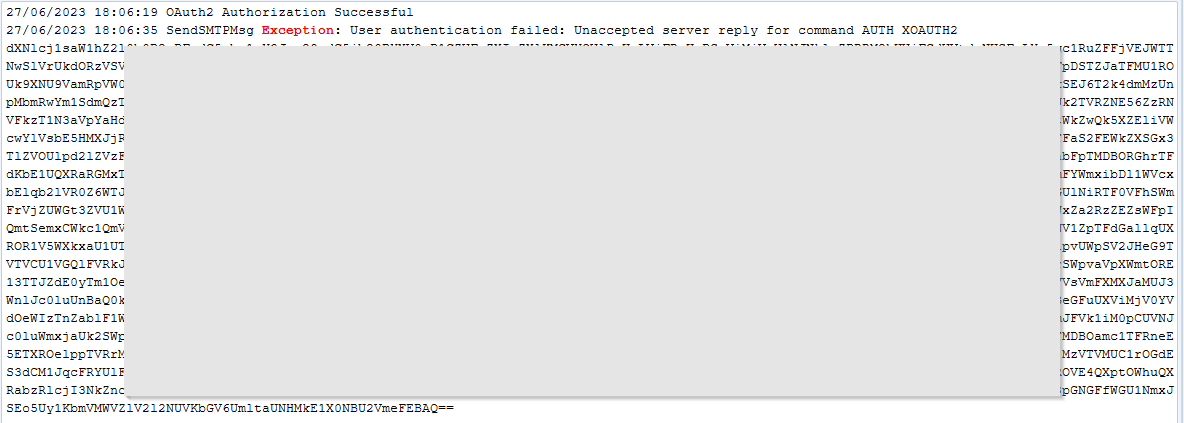
    Microsoft 365 admin center

    “Using a shared mailbox?”

    In case you want to send emails using a shared mailbox:

    • Open Microsoft 365 admin center setup
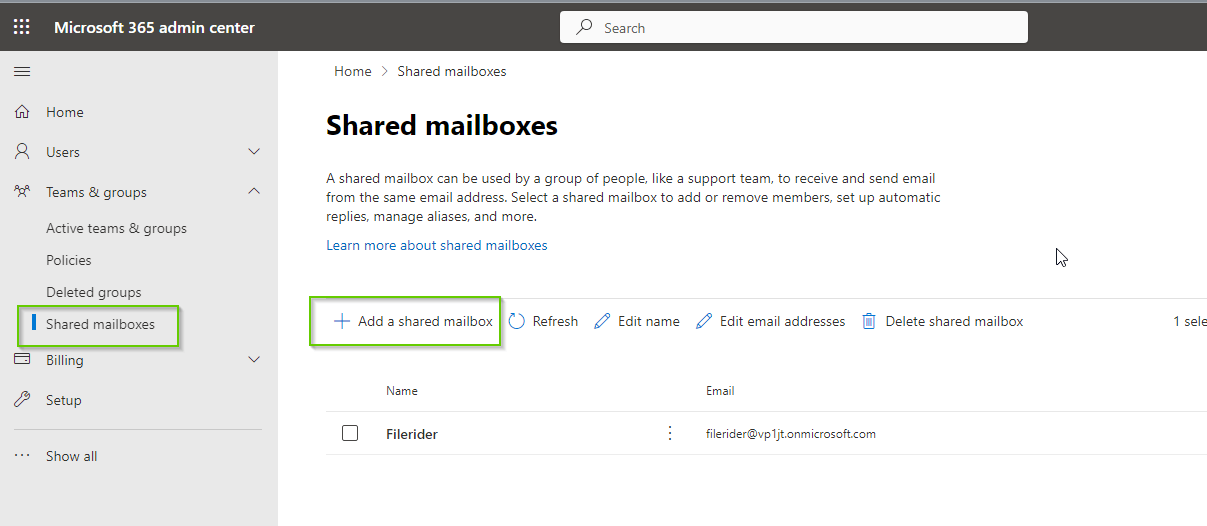
    • Select ‘Teams & “groups”
    • Click “+ Add a shared mailbox”

    Microsoft365 admin center shared mailbox

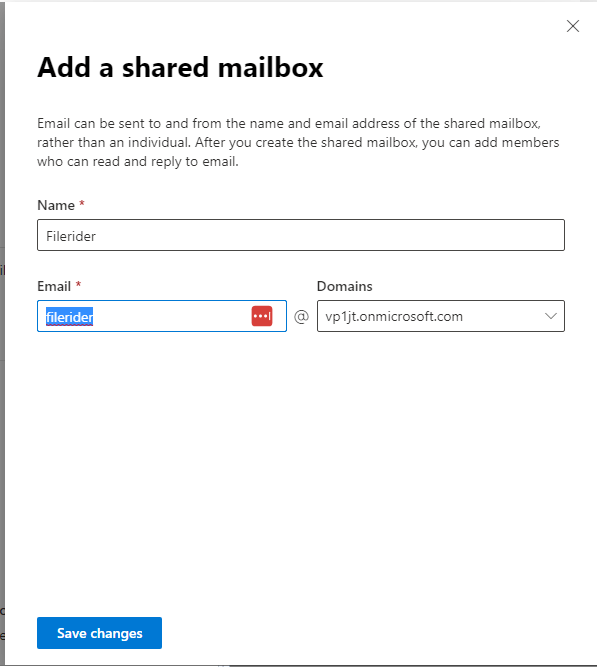
    • Add a shared mailbox

    Microsoft365 admin center shared mailbox

    • Click “Add members to your shared mailbox”
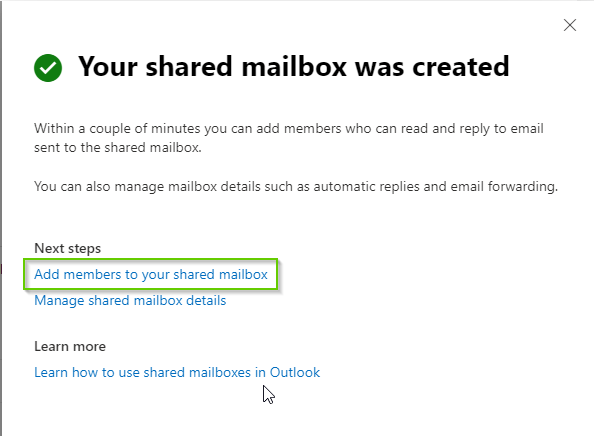
    Microsoft365 admin center shared mailbox

    • Search for members and add. The account you used previously during the ‘App registration’ in Azure must be added as member.
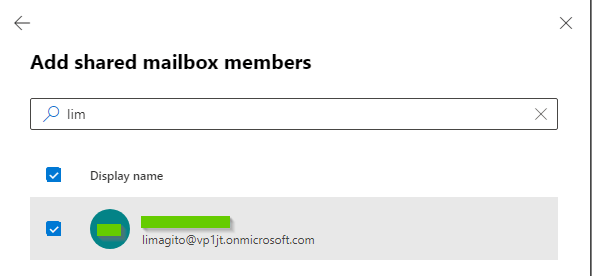
    Microsoft365 admin center shared mailbox

    • If the shared mailbox member is not correct, you’ll receive the following error:
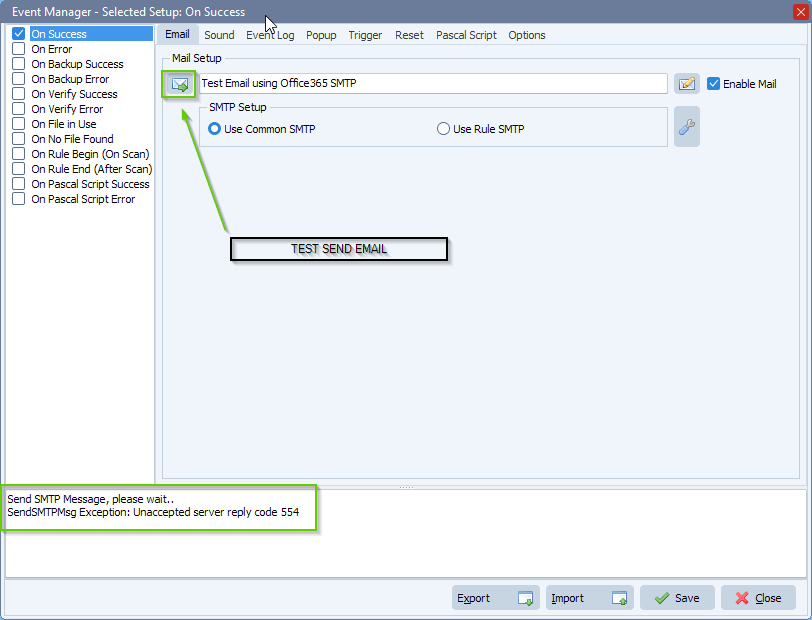
    Microsoft365 admin center shared mailbox

    “Limagito File Mover setup”

    • We’ll be using the Office 365 SMTP to send emails from our ‘Rule Events’ option.
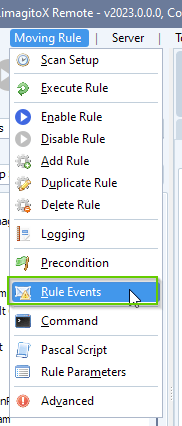
    limagito file mover rule events option

    • We enabled the ‘On Success ‘ event and enabled ‘Enable Mail’:
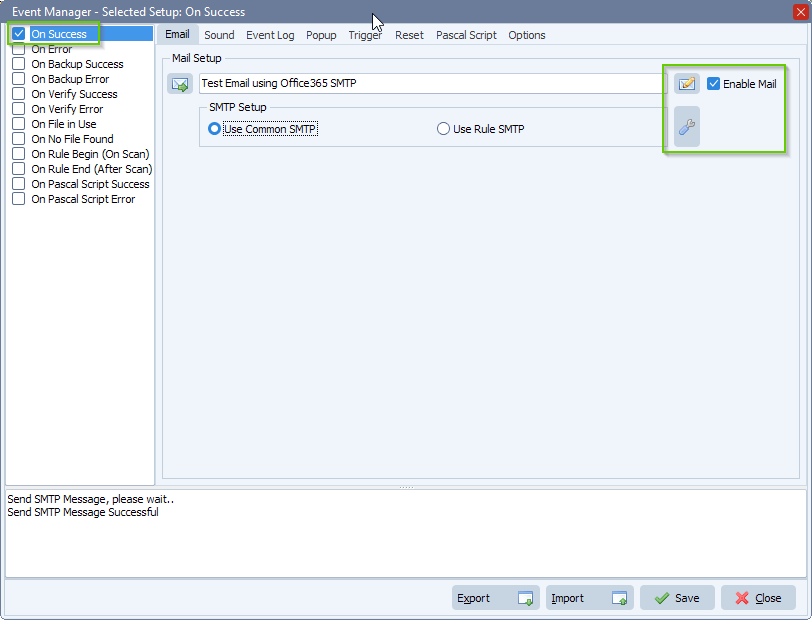
    limagito file mover rule events

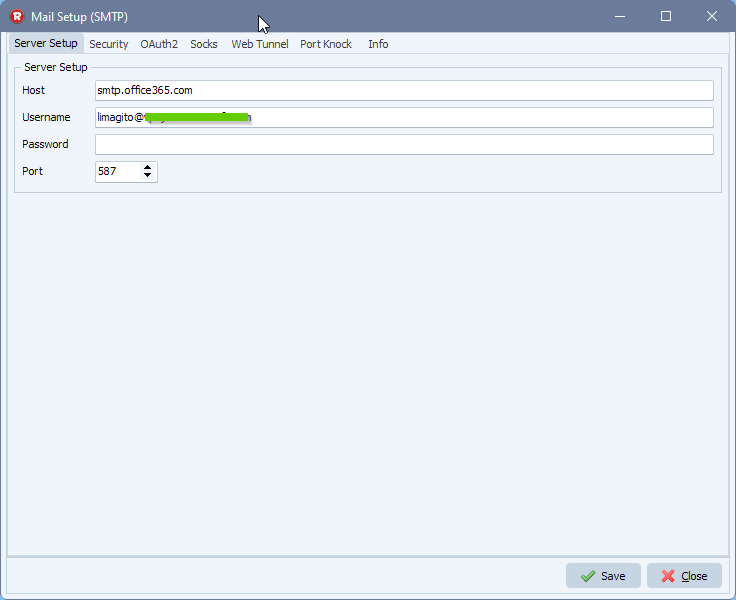
    • Office 365 SMTP Server setup:

    office365 smtp setup

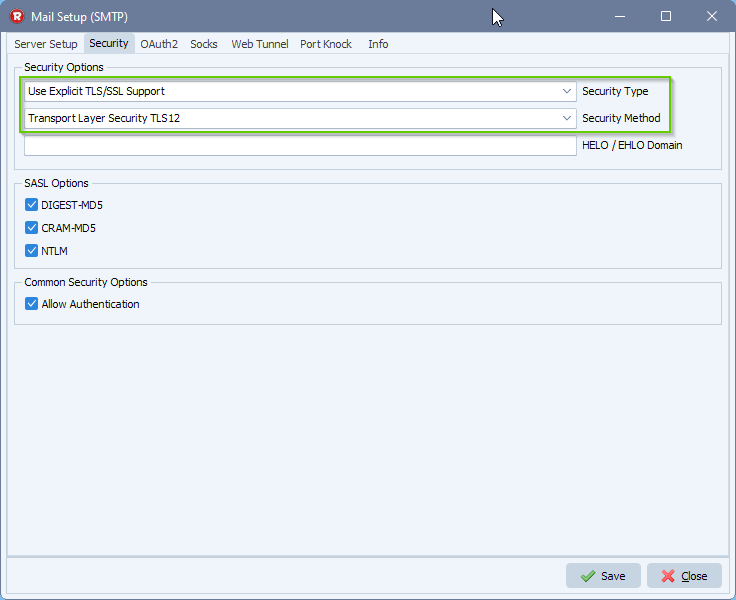
    • Adjust the Security setup:

    office365 smtp setup

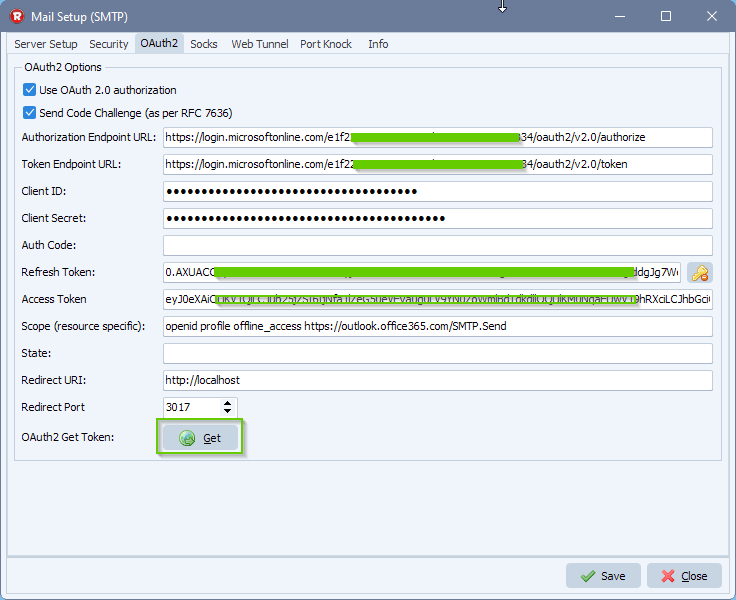
    • Office 365 Auth2 setup:

    office 365 oauth2 setup

    1) Fill in the correct Authorization and Token Url from previous “Azure setup”

    2) Enter Application Client ID and Client Secret Value from previous “Azure setup”
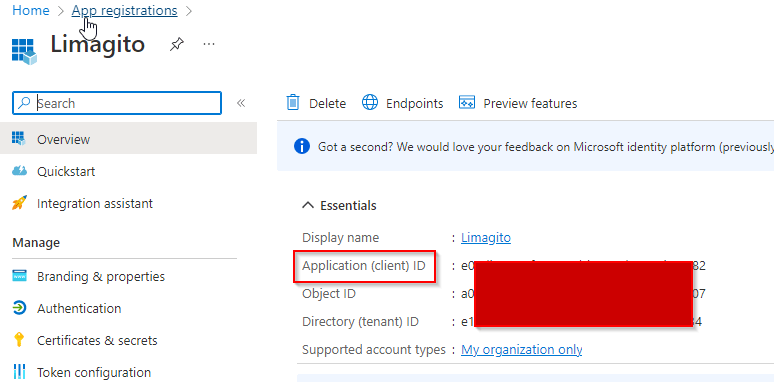
    Azure App Client ID

    Azure Secret Value

    3) Adjust your scope to: openid profile offline_access https://outlook.office365.com/SMTP.Send

      • Provide a SPACE separated list of scopes.
      •  Important: The offline_access scope is needed to get a refresh token.

    4) Set Redirect URI to: http://localhost:3017/

    5) Set Redirect Port to 3017

      • This should be the port in the localhost callback URL for your app.
      • The callback URL would look like “http://localhost:3017/”, if the port number is 3017.
      • The redirect must go to http://localhost
        • It must be localhost and it cannot be “https”.

    Next, click on the <GET> button.

    Should ‘Windows Defender’ popup, please <Allow access>.
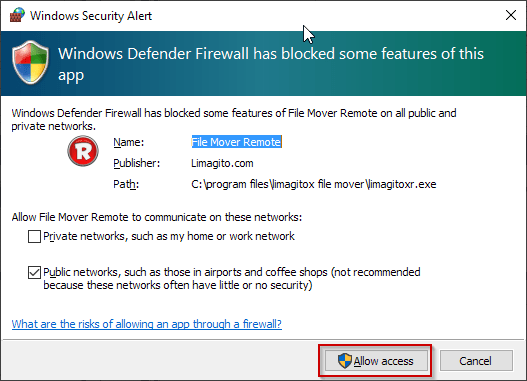
    Limagito File Mover IMAP4 Oauth2

    Your browser will open and ask you for ‘Confirmation’.
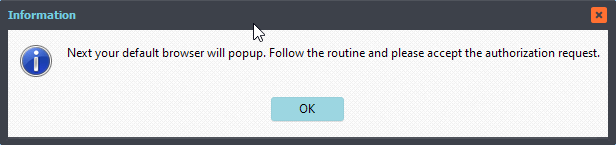
    Limagito File Mover IMAP4 OAuth2

    Follow the routine in your browser and accept the authorization request.
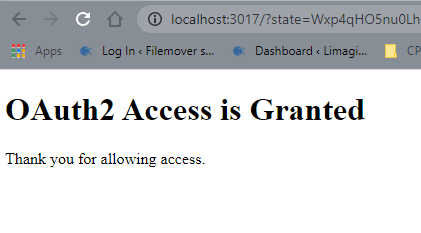
    Limagito File Mover IMAP4 OAuth2 Access is granted

    Now you can close the browser. The ‘Refresh’ and ‘Access’ Token in the OAuth2 Setup should contain values. Click <Save>.
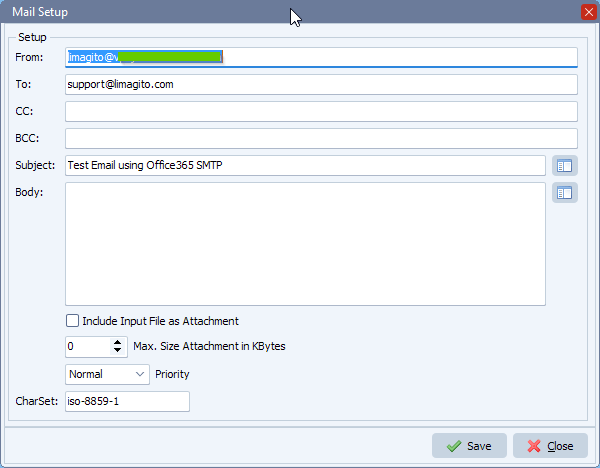
    • Office 365 email setup

    office365 smtp email setup

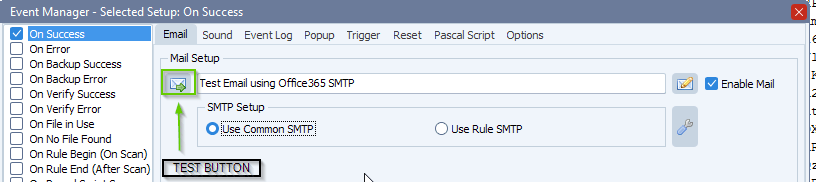
    • Try your setup using the test button

    limagito file mover send email test button

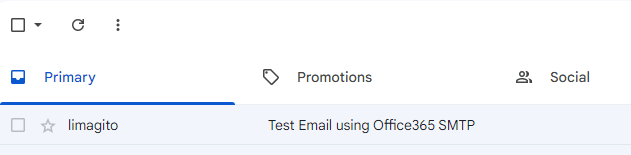
    • Email result

    limagito file mover received email from office365

    Some extra information: ‘Explaining OAuth2 Authentication’.

    The OAuth2 Get Token button does a couple of things:

    1. It starts the OAuth2 Authentication process.
    2. Returns a URL that should be displayed in a browser.
    3. Starts a background thread to receive the redirect callback from the browser.

    The flow of control is like this:

    1. The browser (popped up and displayed by our file mover) automatically navigates to the URL provided by Start Authentication.
    2. The user interactively authorizes the access. In doing so, the response sent back to the browser is a redirect to http://localhost:<someport>/
    3. The browser receives the response, and redirects to the http://localhost:<someport>/
    4. The background thread (= temporary HTTP server using <someport>) is the thing that is listening at and receives the response, and then your OAuth2 is completed.

    The redirect must go to http://localhost:<someport>/. It must be localhost, and it cannot be “https”. If you defined your application’s redirect URL to a web address such as “https://yourdomain.com/something…”, then the background thread is just sitting there waiting for the callback, which never happens (because it went to your web server).

    #office365 #mft #Filetransfer #smtp

    If you need any info about this “Office 365 SMTP”, please let us know.

    Best regards,

    Limagito Team

  • 29 Jan

    Trying to connect to a shared mailbox in 365

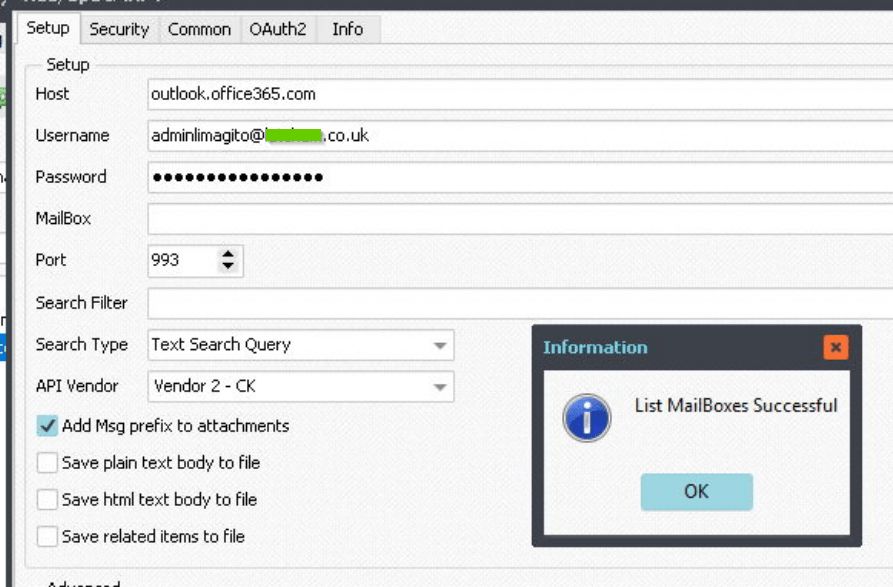
    Q: I am now trying to connect to a shared mailbox in 365, can you please assist on how I can do this? The authentication is working fine against the user mailbox [A] but I’m not sure how to modify the IMAP4 setup to connect to a shared mailbox.

    Source:  [IMAP4]#adminlimagito@mycompany.co.uk@outlook.office365.com:993

    MailUser:  adminlimagito@mycompany.co.uk

    Shared mail:   health@mycompany.co.uk – mailbox permissions setup, email apps enabled

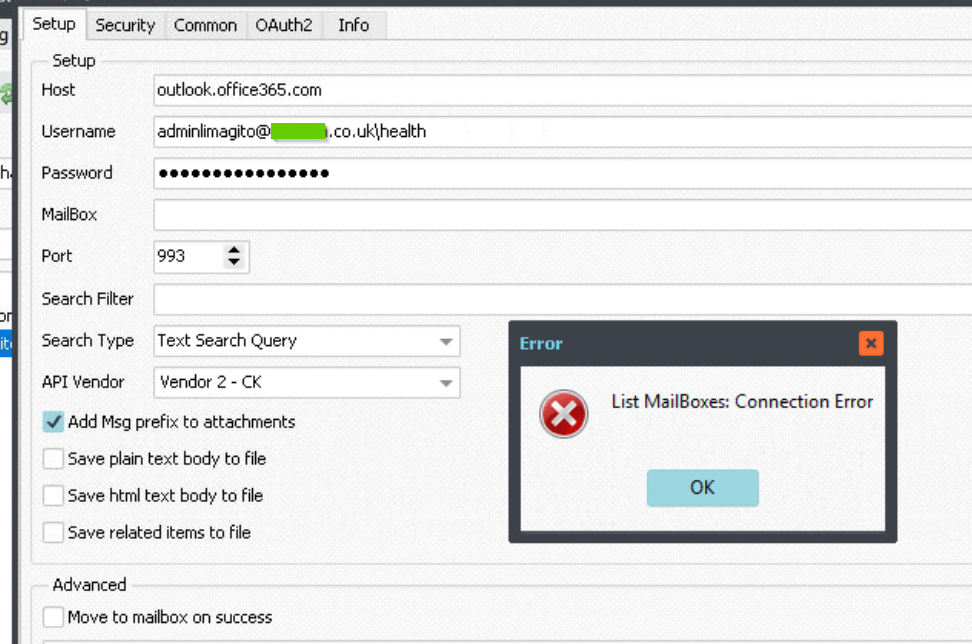
    I’ve tried using: adminlimagito@mycompany.co.uk\health in the username and various other option all without success [B]

    If I put health@mycompany.co.uk in the Mailbox I think it ignores this and connects to the user mailbox.

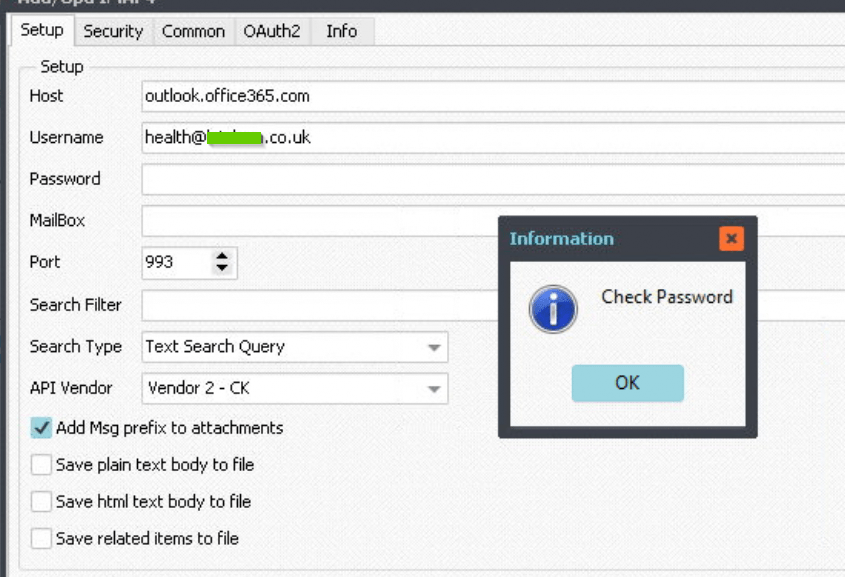
    If I follow the instructions https://limagito.com/is-there-a-possibility-to-access-a-shared-office-365-mailbox-with-imap/ it returns error ‘Check Password’ [C]

    Many thanks, Adam

    [A]
    Limagito File Mover shared mailbox in 365

    [B]
    Limagito File Mover shared mailbox in 365

    [C]
    Limagito File Mover shared mailbox in 365

    – Limagito:

    Hello Adam,
    According to our information (confirmed by a user) you should enter the shared mail address as username (health@mycompany.co.uk)
    The reason why in our article the password is left blank is because our user was using OAuth2 authentication.
    ( https://limagito.com/connecting-to-office-365-email-using-imap-and-oauth2-authentication/ )

    That is why you get the ‘Check Password’ Messagebox.

    Question, what happens when you enter health@mycompany.co.uk as username and the password from the admin account (adminlimagito@mycompany.co.uk).

    – Customer:

    As suggested I changed the username to health@mycompany.co.uk

    And left the password is it was for the admin account (adminlimagito@mycompany.co.uk).

    This now lists the health mailbox!

    The source is now: [IMAP4]health#health@mycompany.co.uk@outlook.office365.com:993

    I would not have thought to try exactly that. One for your (&mine) documentation perhaps

    Thanks again for your quick response 😊

    Adam

    #FileTransfer #imap

    If you need any info about this post, please let us know.

    Best regards,

    Limagito Team
1 2
SEARCH