Events

  • 22 Feb

    How to use global events in limagito filemover

    Most requested feature: ‘Global Events’ — available in version v2026.2.22.0

    This is especially useful when multiple rules share the same event configuration — change it once and all rules are updated automatically. It took us more time the expected but finally it is available. It is a first release so there can be hiccups, please let us know. We’ll fix them asap.

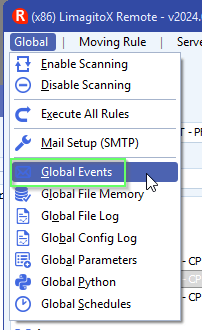
    • Setup your ‘Global Events’ using the menu item under ‘Global’:

    limagito filemover global events option

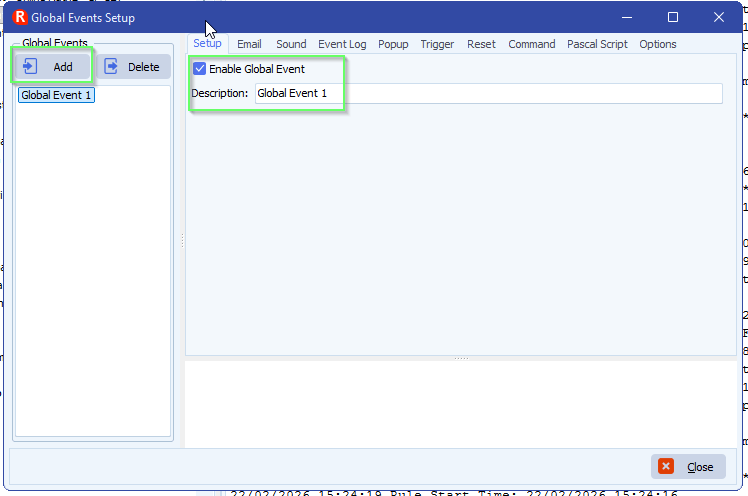
    • <Add> a new ‘Global Event’, give it a valid description and enable it.

    limagito filemover global events setup

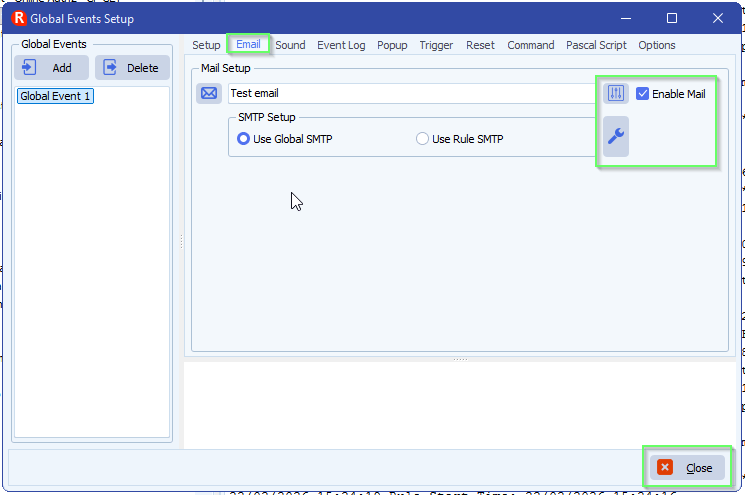
    • Do your usual setup like you did with the Rule Events. When you are done click <Close>.

    limagito filemover global events setup

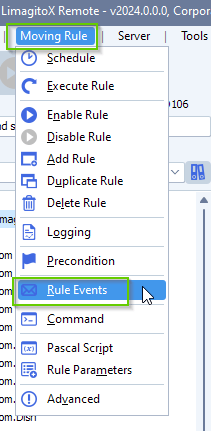
    • Open the Rule(s) where you want to use the new ‘Global Setup’.

    limagito filemover rule events option

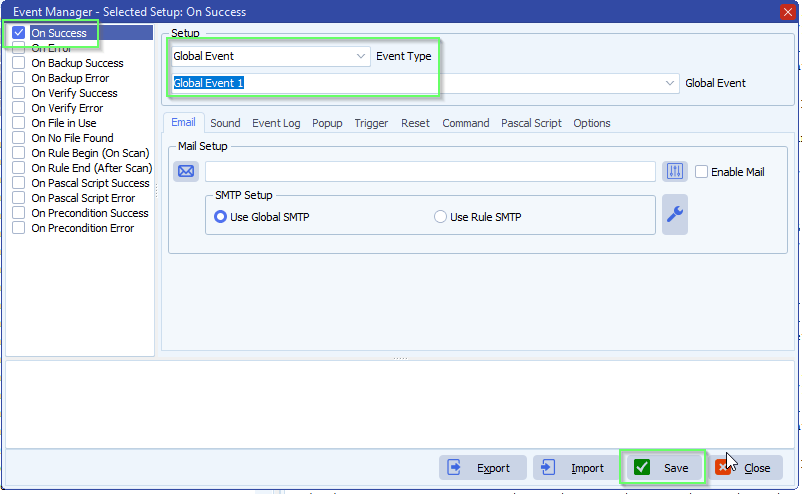
    • Select ‘Global Event’ as Event Type and select the event you want to use. In this example we selected the previously created ‘Global event 1’.

    limagito filemover rule events setup

    If you need any help with this new option, please let us know.

    Best Regards,

    Limagito Team

    #filemover #managedfiletransfer #filetransfer #filemanagement

    By Limagito-Team Events How-to ,
  • 12 Oct

    How to send an email when a file is successfully transferred

    How to send an email when a file is successfully transferred

    Q: Just to confirm… for an email to be sent when a file is successfully transferred I tick the On Success button ? I remember the tick box for 1 email per file or 1 email per session.

    A: I’ve added some screenshots to get you started:

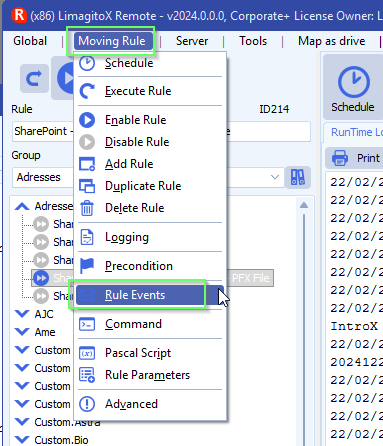
    • Open the Rule Events option:

    limagito file mover rule events option

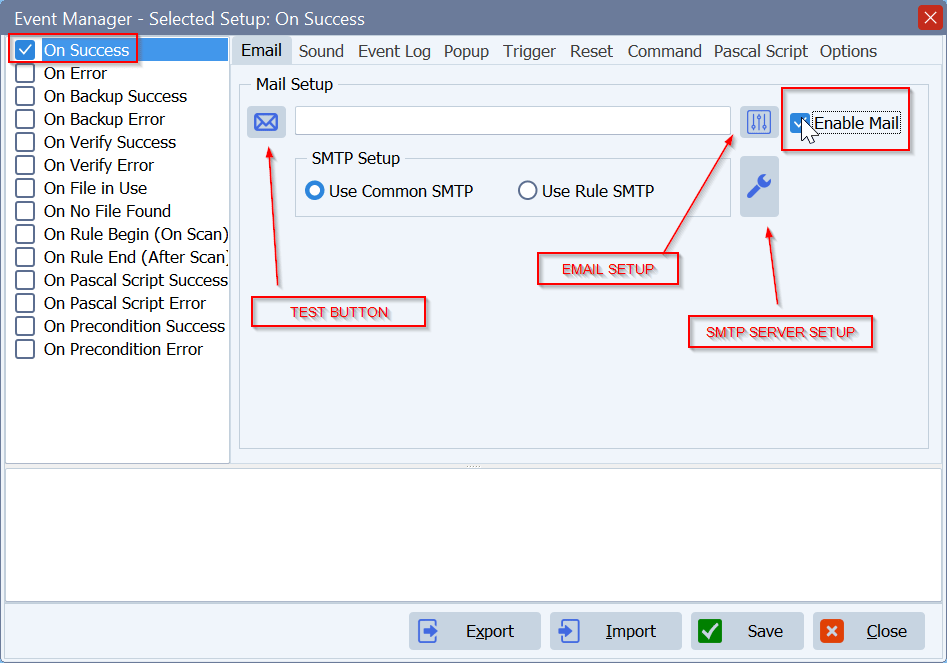
    • Enable ‘On Success’ Event
    • Enable ‘Enable Mail’ with ‘On Success’ Event selected
    • Setup Email
    • Setup SMTP Server if not already done

    limagito file mover send an email when a file is successfully transferred

    • I remember the tick box for 1 email per file or 1 email per session
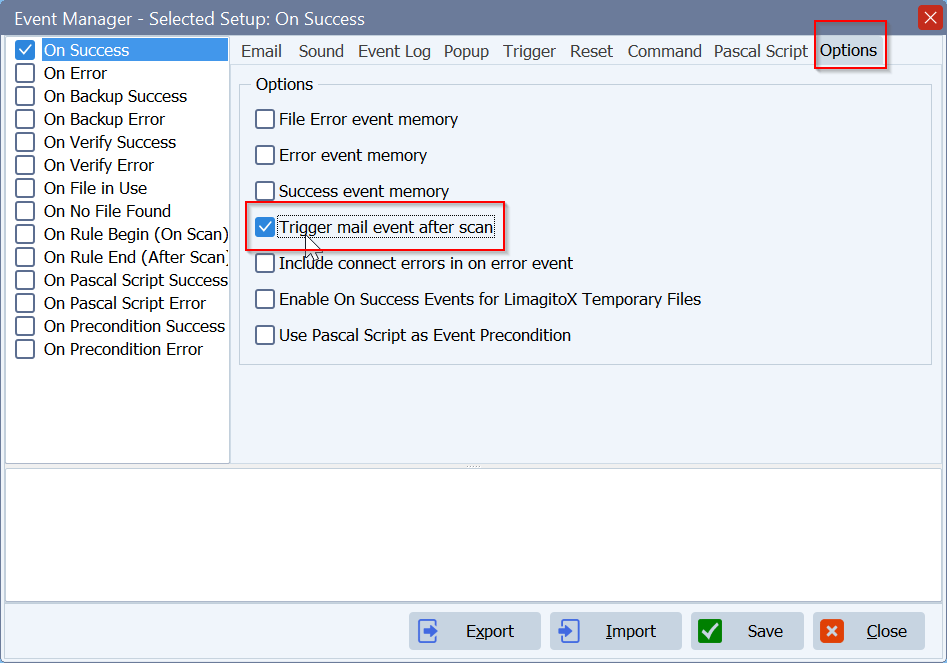
      • If you want a single email after the scan, and not for each file, then please enable ‘Trigger mail event after scan’.

    limagito file mover rule events options

    If you need any help with this ‘send an email when a file is successfully transferred’ request, please let us know.

    Best Regards,

    Limagito Team

    #smtp #managedfiletransfer #filetransfer #filemanagement

  • 20 Jul

    How to halt moving too many files and send an alert

    How to halt moving too many files and send an alert

    Q: I have a job that moves files from an external S3 bucket into our local storage. The other day a vendor hiccupped and sent 8000 files. Limagito did it’s job and moved them over, which ended up gumming up our systems. Is there any way to limit transfers? I’ve been looking through Help and haven’t seen anything yet.

    For instance…I know this vendor normally sends around 10 a month. Anything over 50 would obviously be abnormal and It would be great to throttle them, even better to send an alert and let us know, so we can correct the issue.

    Any help would be greatly appreciated.

    A: Please have a look at the following setup. So we’ll allow only a maximum of files per month.

    • We used a Windows folder as Source:

    halt moving too many files

    – Function Setup > set Destination Options to ‘Destination Memory & Exit Cyclus on Error’
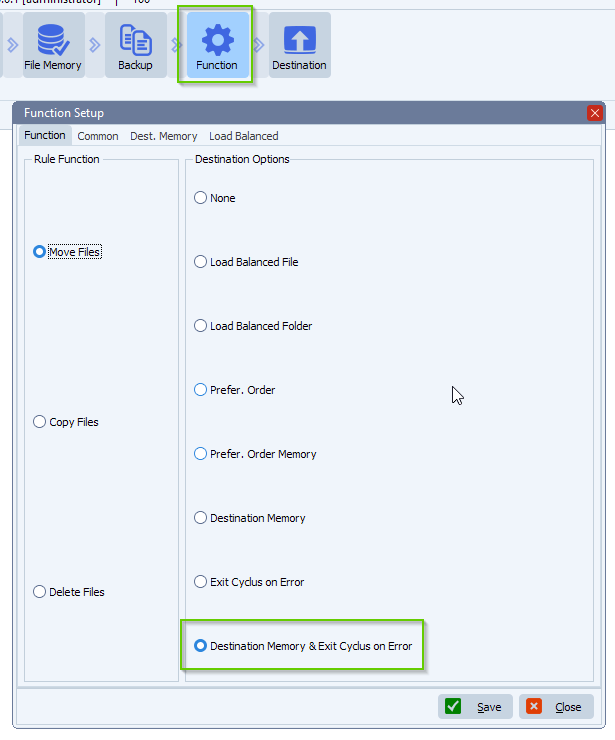
    limagito file mover function setup

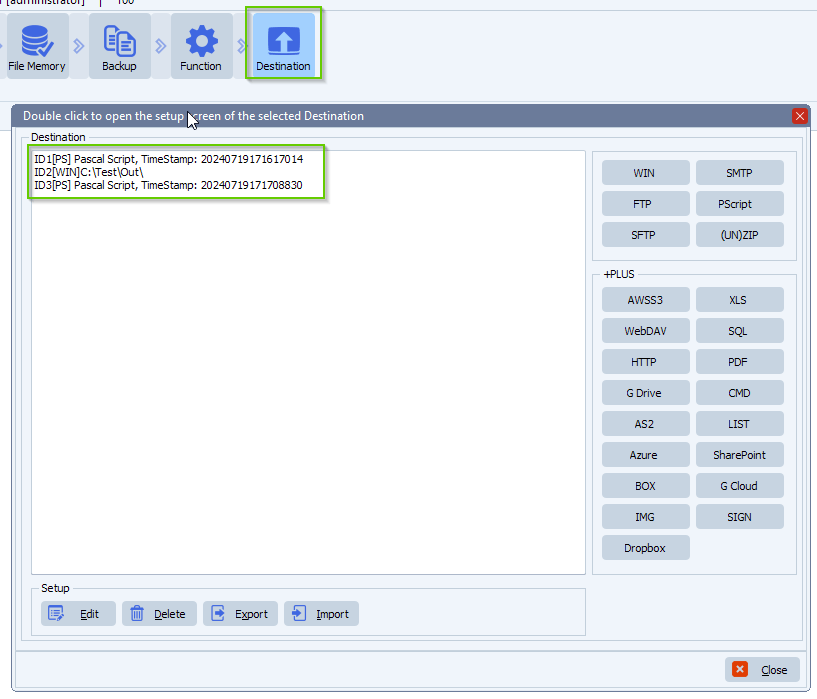
     – Destination Setup:
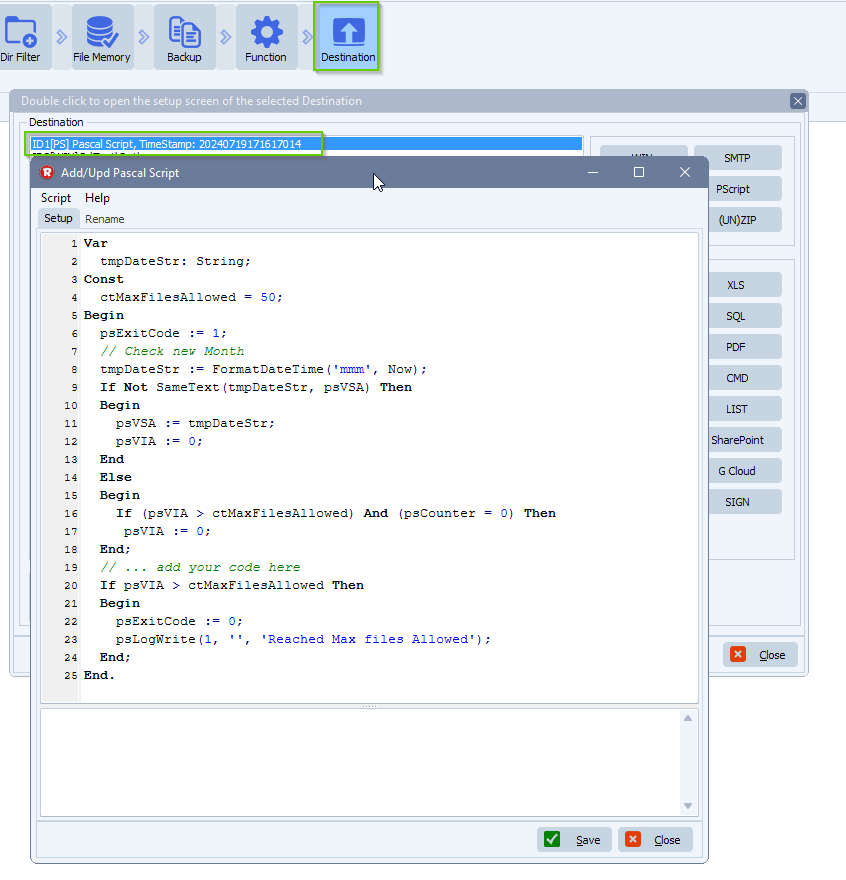
    • First Destination: Pascal Script
      • This script will check the month and the amount of files it successfully moved
      • You can adjust the “ctMaxFilesAllowed” Const value to allow more or less files per month
    • Second Destination: your output, can be any Destination type.
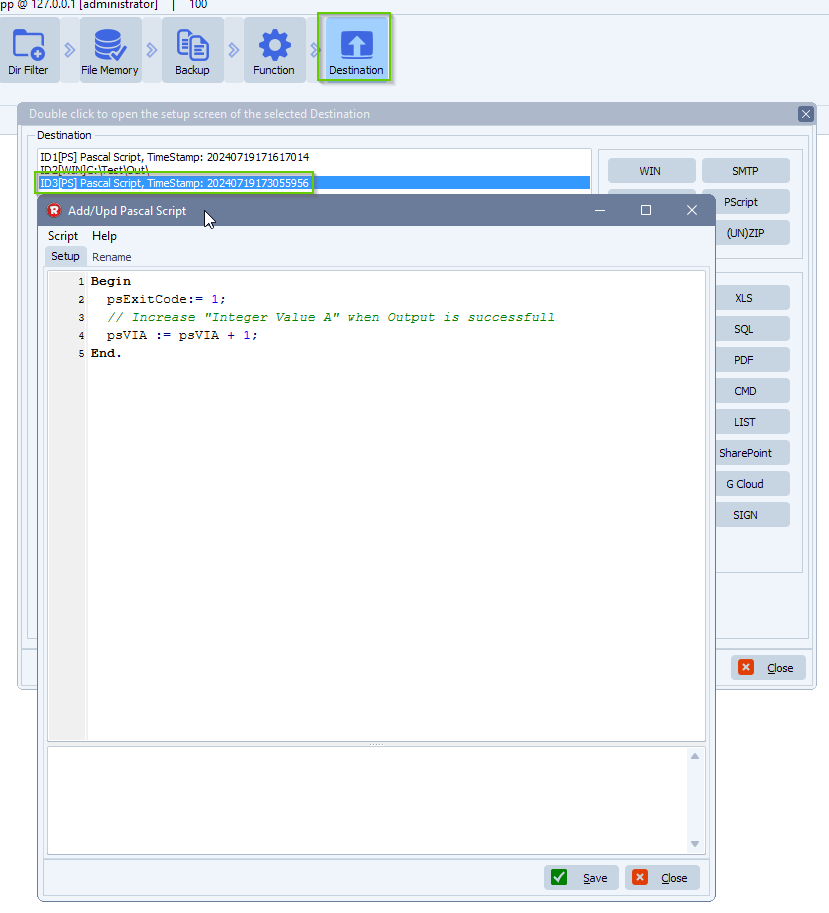
    • Third Destination: Pascal Script
      • Will increase the internal counter (VIA) if a file is successfully moved
    Link to both scripts, for the first and third Destination.
    limagito file mover Destination setup
    First Destination (Pascal Script):
    limagito file mover halt moving too many files
    Third Destination (Pascal Script):
    limagito file mover halt moving too many files
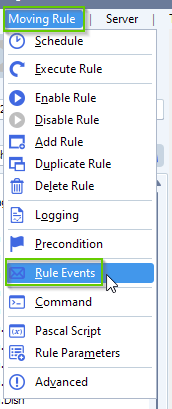
    – Open Our Rule Events option:
    limagito filemover rule events option
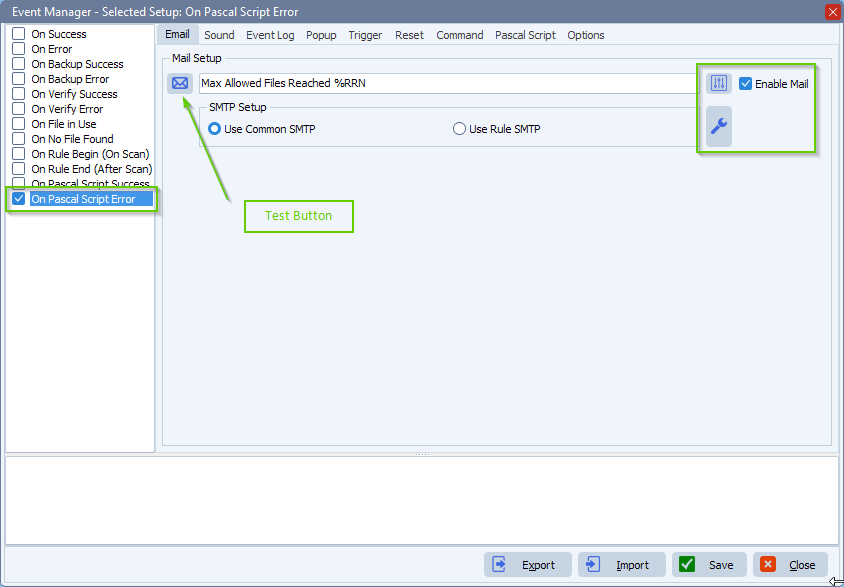
    – Select and enable ‘On Pascal Script Error’ event. Enable ‘Enable Mail’ and adjust the mail setup. There is a test button available.
    limagito file mover rule events setup
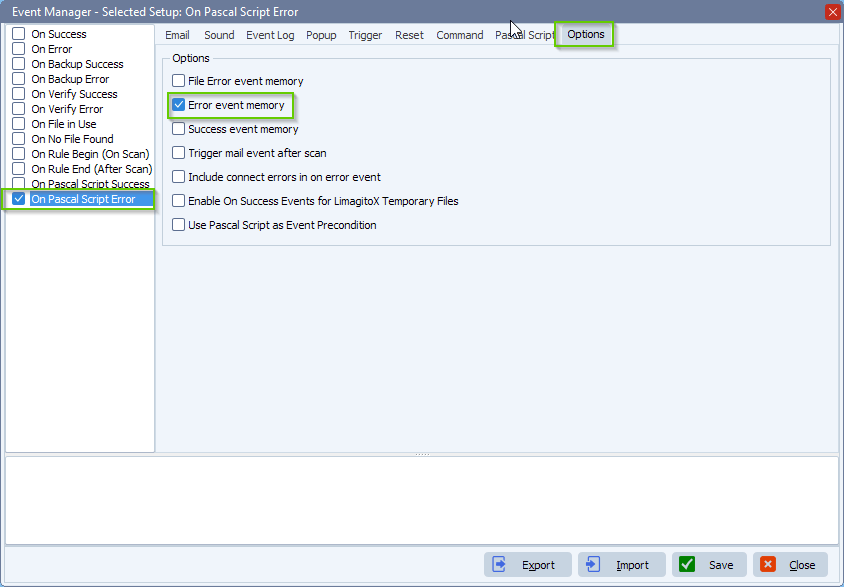
    Enable the ‘Error event memory’ because otherwise you’ll get too many emails in case the maximum of files is reached.
    limagito file mover rule events setup
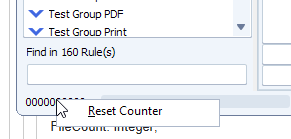
    FYI: When you would test this setup and max files are reached we added a way to reset the internal counter (max files allowed per month).
    Right click on the Counter value below and select ‘Reset Counter’.
    limagito file mover reset counter

    This is is just an example of what is possible. If you need any help with this ‘halt moving too many files’ setup, please let us know.

    Best Regards,

    Limagito Team

    #managedfiletransfer #filetransfer #filemanagement

1 2
SEARCH