Remote Tool

  • 25 Jul

    How to search for a rule in limagito file mover


    How to search for a rule in limagito file mover

    Since version v2025.7.25.0 we have two possibilities:

    1. Use the Search field below and enter the text you would like to search for. If the text is found, it will be highlighted in the list of Rules. Press the ‘down arrow’ key if you want to jump to the next position where this text can be found.
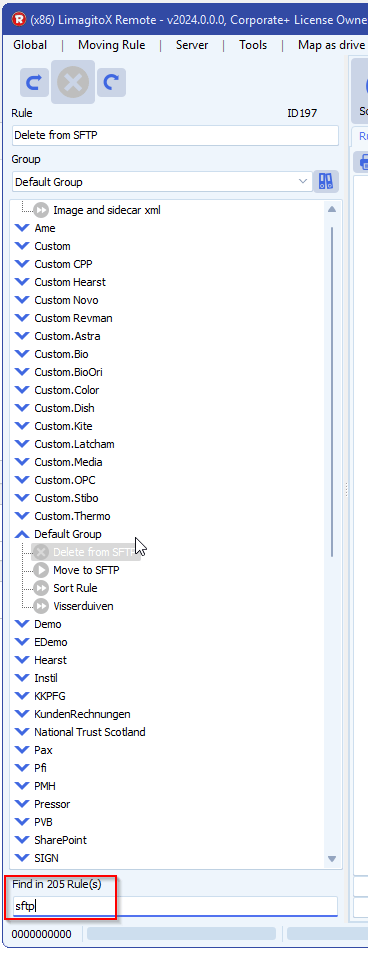
    limagito file mover search for a rule

    2. Use the Search field below and enter ID / Number of the Rule. For example if you would like to jump to Rule 25 then please enter ID25
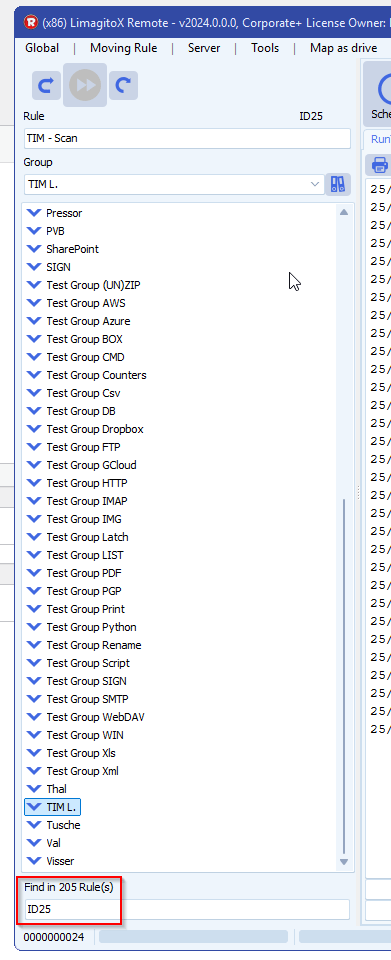
    limagito file mover search for a rule

    If you need any help with this new search option, please let us know.

    Best Regards,

    Limagito Team

    #managedfiletransfer #filetransfer #filemanagement
    By Limagito-Team Remote Tool ,
  • 10 Dec

    How to make Filemover available on a web page for users

    Howto make Filemover available on a web page for users

    Q: Please can you send me the process of making Filemover available on a web page for users to see the rules and check their status.

    A: an older article is available here

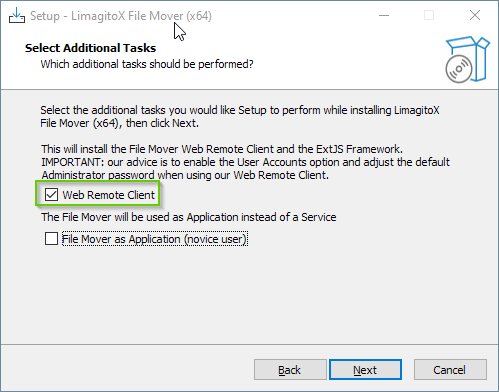
    • When you didn’t enable our ‘Web Remote Client’ option during the installation then please run the installer again, please check the info here. This option will add the Web Remote Service (LimagitoXW.exe) to the install directory and will install the FMSoft uniGUI RunTime Framework. This framework will be used by the Web Remote Service.

    limagito file mover web page for users

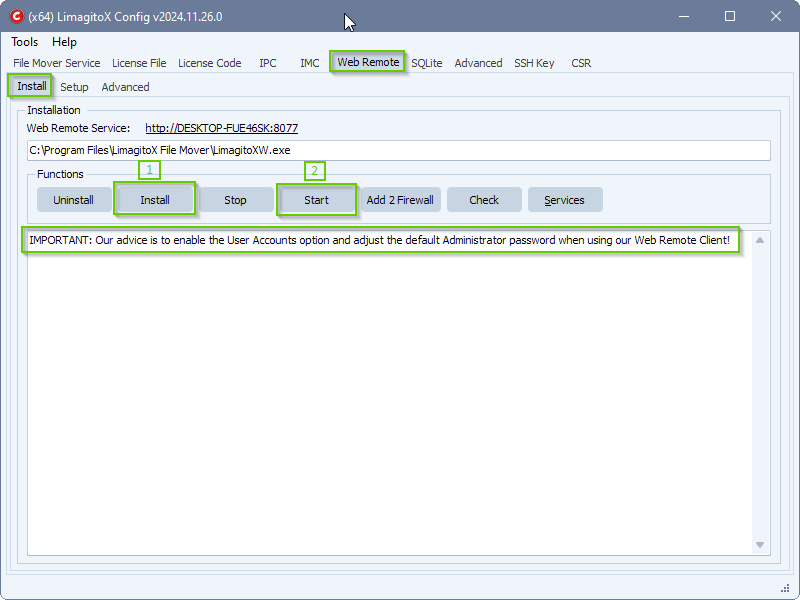
    • After installation you can install and start the Web Remote Service using our Limagito File Mover Config tool (LimagitoXC.exe).
      • Select Web Remote Tab > Install
        • Click <Install>
        • Click <Add 2 Firewall> (optional)
        • Click <Start>
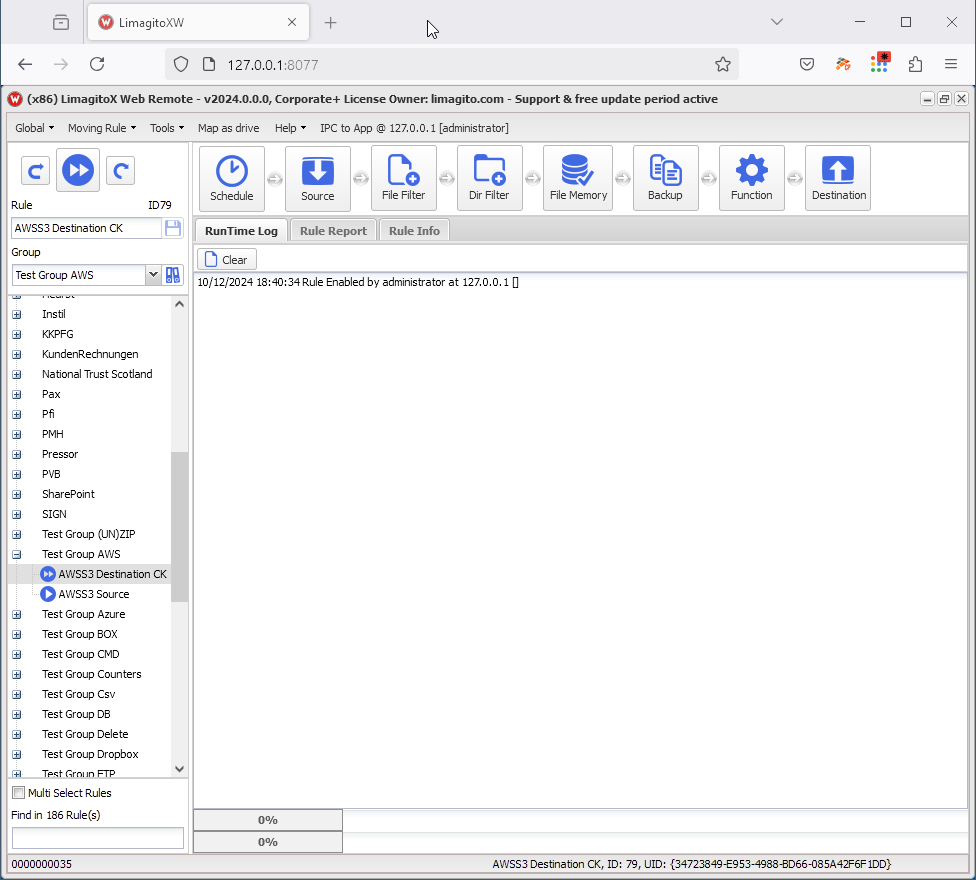
      • The webpage will be available at http://YourSystemName:8077 or (http://127.0.0.1:8077)

    limagito file mover web remote setup

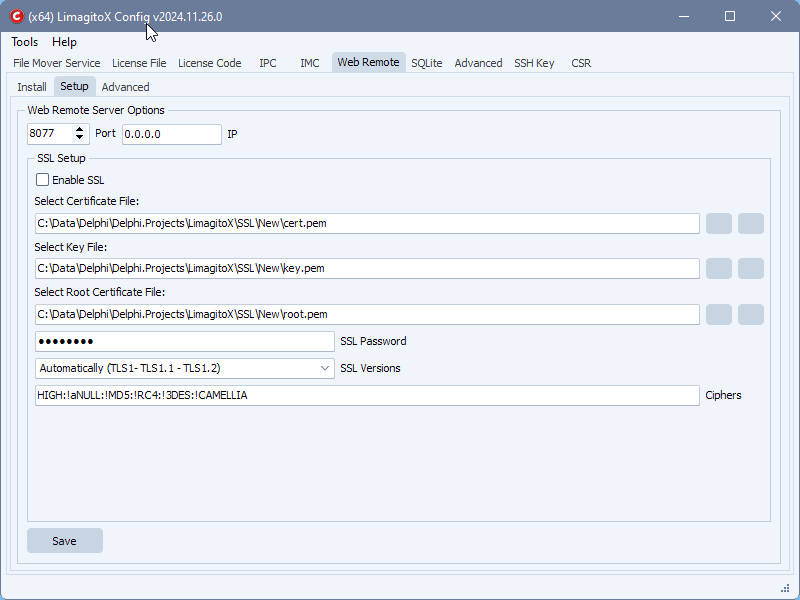
      • Select Web Remote Tab > Setup
        • Default port is 8077
        • IP: 0.0.0.0 (any IP assigned to the system)
        • SSL Setup
      • Don’t forget to click <Save> if you made any changes to the setup.
        • You’ll need to stop the Web Remote Service first (Web Remote Install Tab)
        • Click <Save>
        • Start the Web Remote Service

    limagito file mover web remote client

    • Result:

    limagito file mover web remote

    If you need any help with this question, please let us know.

    Best Regards,

    Limagito Team

    #managedfiletransfer #filetransfer #filemanagement
  • 27 Feb

    Remotely manage multiple servers running Limagito File Mover

    Remotely manage multiple servers running Limagito File Mover more easy.

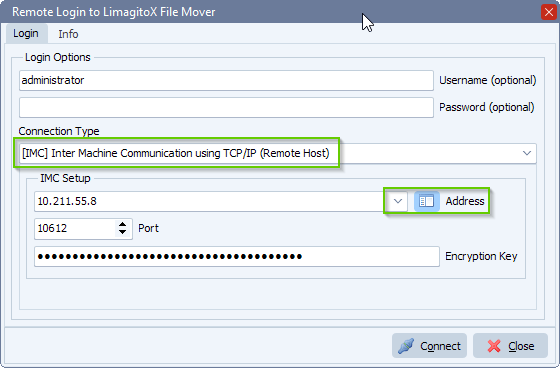
    The (Web)Remote tool has 2 options to connect to its File Mover engine (which is running as Service OR Application).

    • IPC: Inter Process Communication (using named pipes) which can be used locally on the system where Limagito Engine is running.
    • IMC: Inter Machine Communication (using encrypted TCP/IP) which can be used within your network.

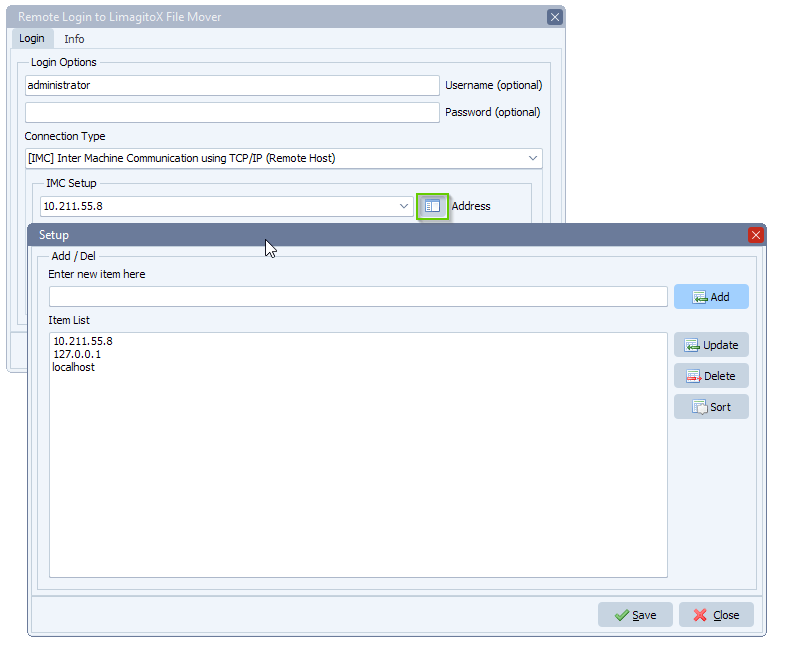
    In version v2023.2.27.0 we added an address list option to the IMC connection method. This way you can create a selection list of your Limagito instances.

    Limagito remote client login

    manage multiple limagito servers

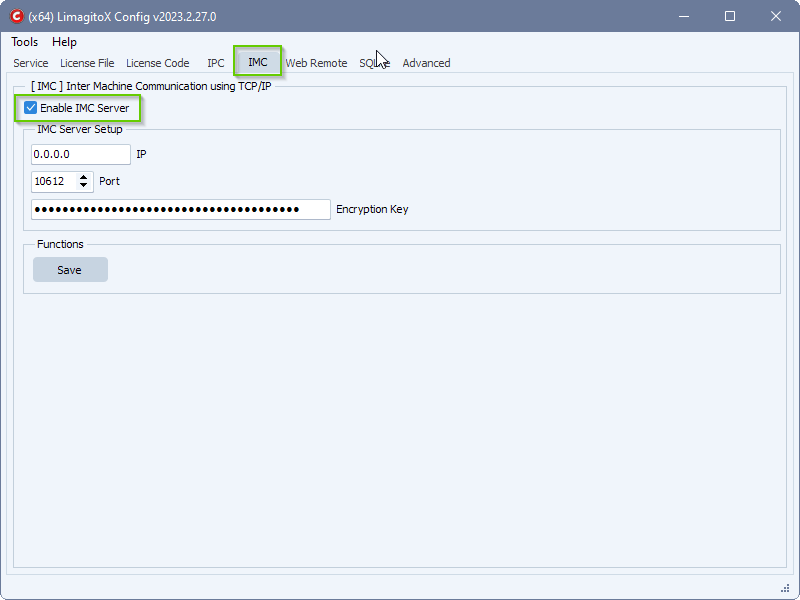
    FYI, IMC by default is disabled. You can enable this option using the Limagito Config Tool > IMC Tab > ‘Enable IMC Server’.

    Limagito config IMC setup

    #FileTransfer #Logging

    If you need any info about this ‘manage multiple servers’ option, please let us know.

    Best regards,

    Limagito Team

    By Limagito-Team Remote Tool
1 2 3 4 5
SEARCH