Q: Source file parsing request:
It was a pleasure meeting you this morning, we had a productive time upgrading our lower-environment server.
Now, I have a specific requirement, I want to know if this is doable in Limagito?
I have attached 3 source log files, and an Excel file for lookup values.
Let me know what is possible and what isn’t.
Your help would be appreciated.
Requirement is.
- Get a portion of the source–filename-Filename is: 3294006586260310100730.log-get 7th position and is 4 digits in length (is the instrument-Slno)-Lookup for slno in the csv file for a possible match-in the 1st column (match just the 1st 4 digits alone)-and get the associated value in the 2nd column. (VAR-1)-if there isn’t a match, then assign ‘Default‘ to VAR-1
- Open source-file-and lookup for a static-string ‘Donation ID’:-and get the associated value which is on the same line. (VAR-2)-if there isn’t a match, then assign ‘None‘ to VAR-2-if there are any backward or forward slashes within the value, replace it with space
- Rename the Target file name.-with the original Primary name-and suffix it with ‘-‘-and suffix it with (VAR-2)-and suffix it with ‘-‘-and suffix it with (VAR-1)-File Extension should be ‘.TXT‘
- Create a folder with the name (VAR-1) on the Target path and drop the associated renamed file in it.
A: Yes this is possible using our srcipting option.
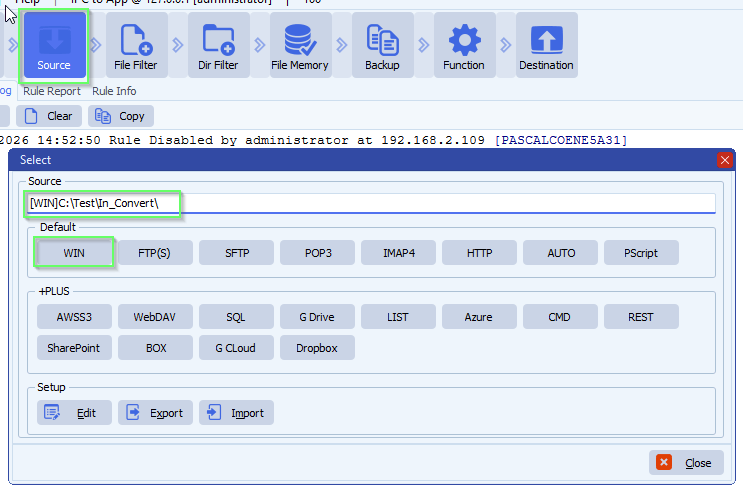
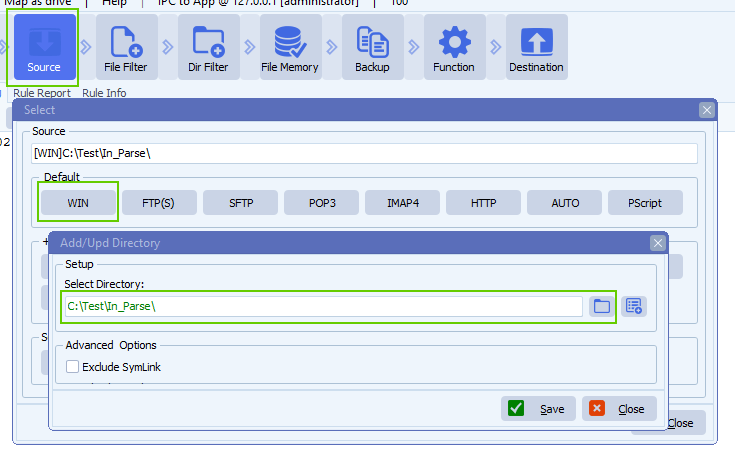
- The Source must be a Windows folder (or share):
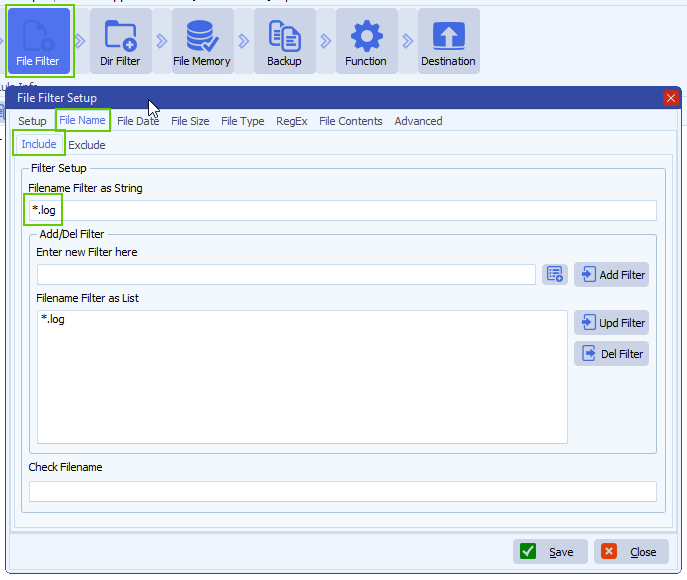
- As file filter we used *.log because we only need to search for log files:
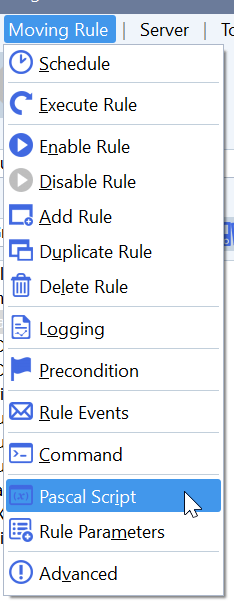
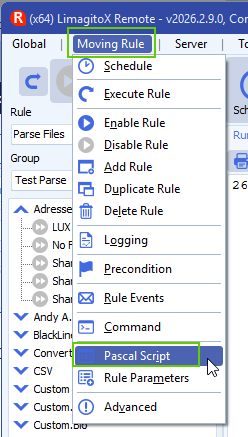
- Open our Pascal Script option:
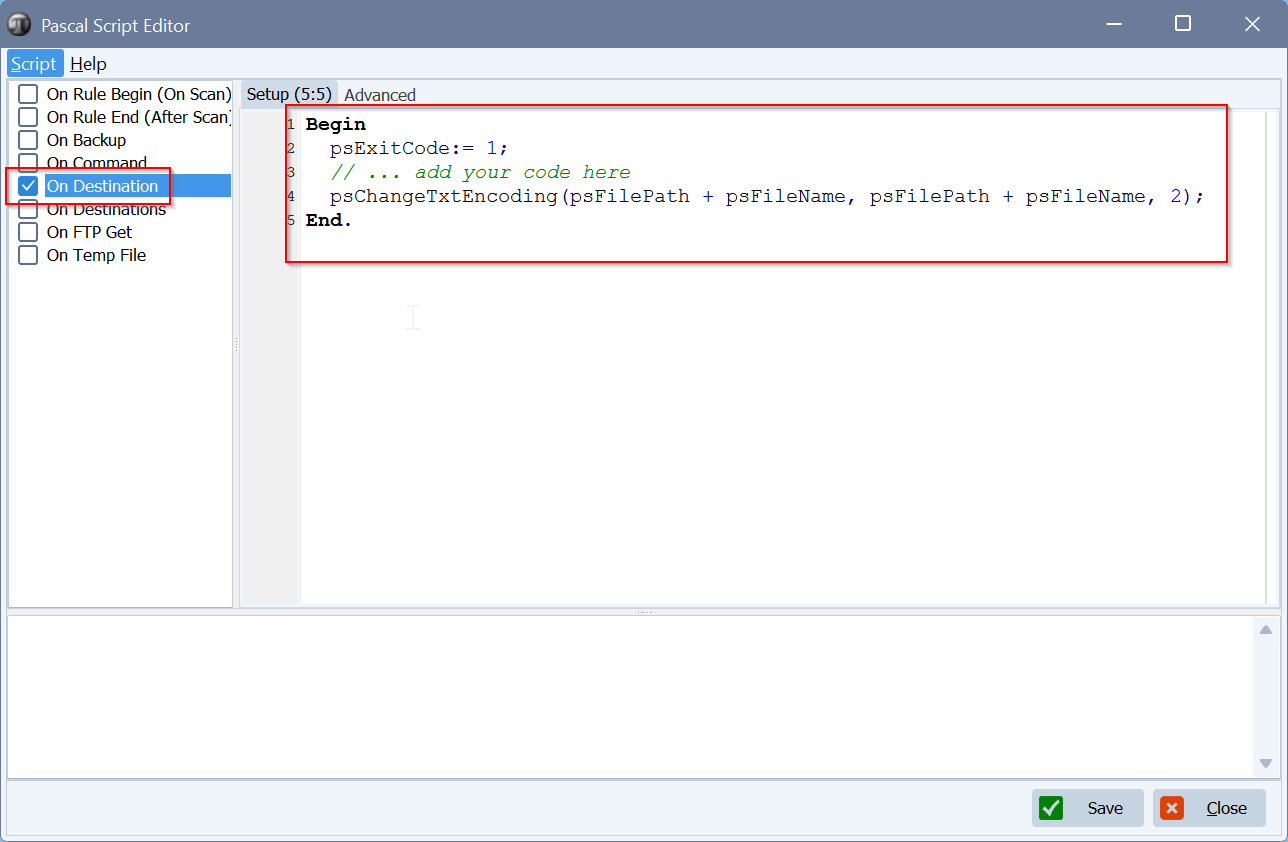
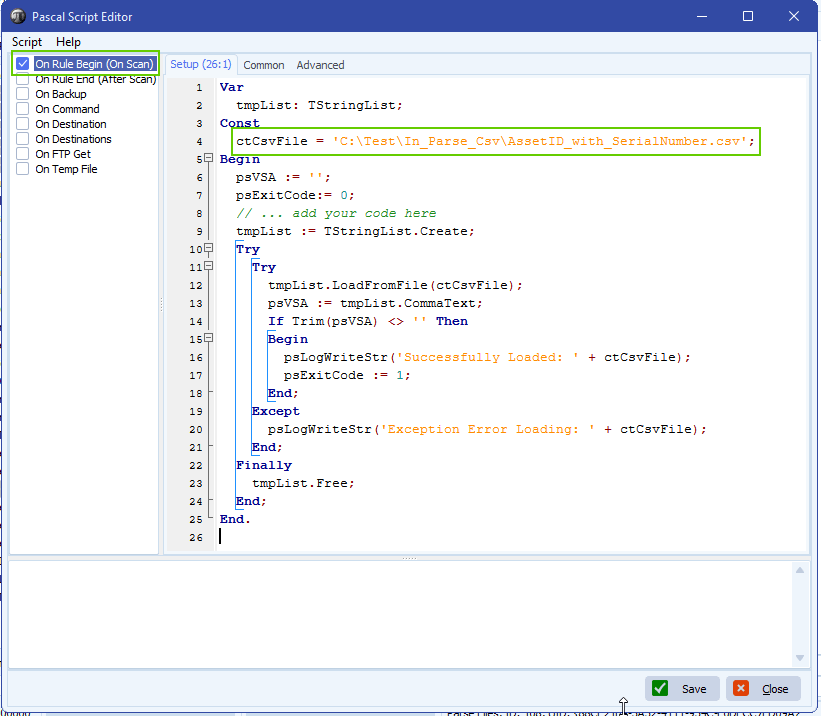
- Enable and add the following ‘On Rule Begin’ script:
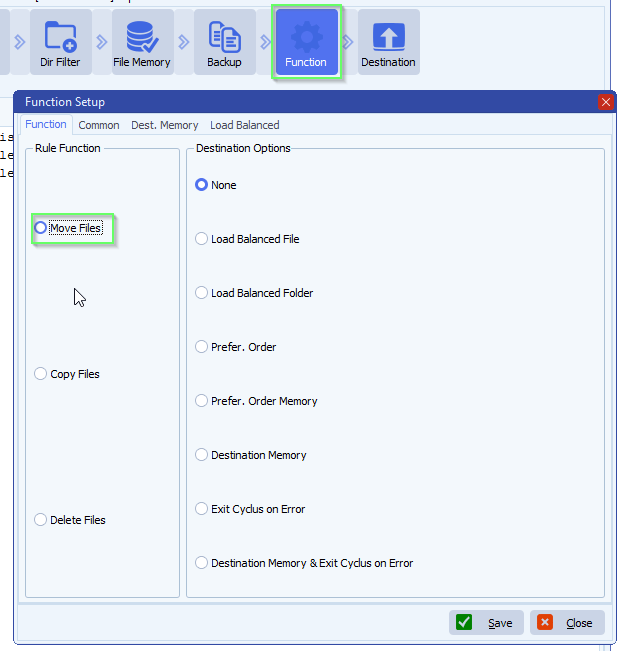
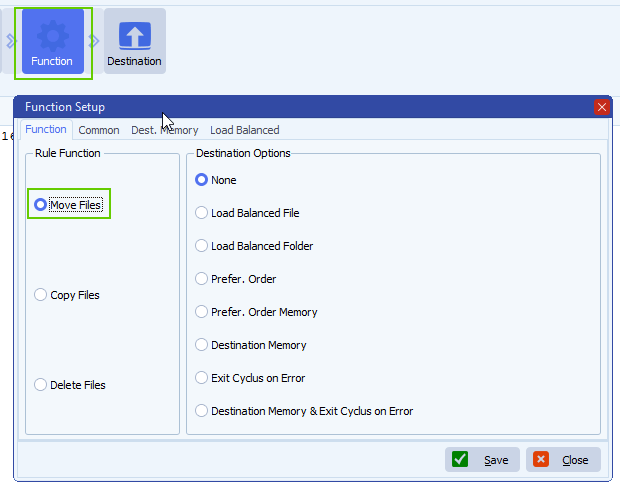
- Funtion setup:
- We are using ‘Move Files’ in our test setup
- If you want to keep the files in the source then
- Select ‘Copy Files’ instead
- Enable our File Memory option! This way we will only copy the same file once.
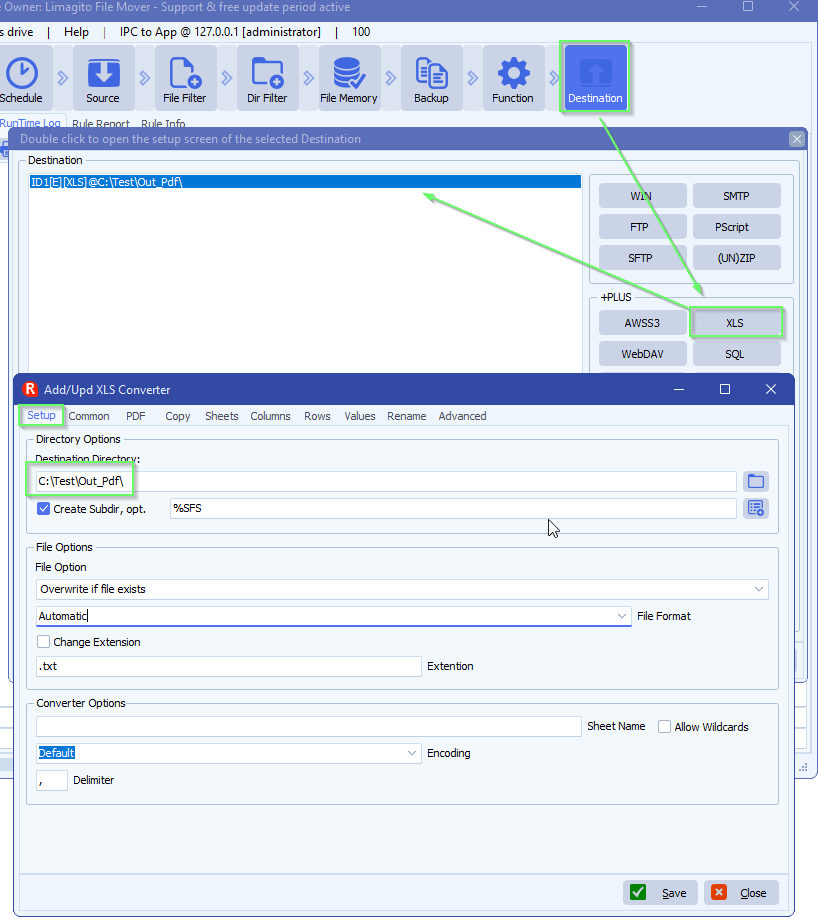
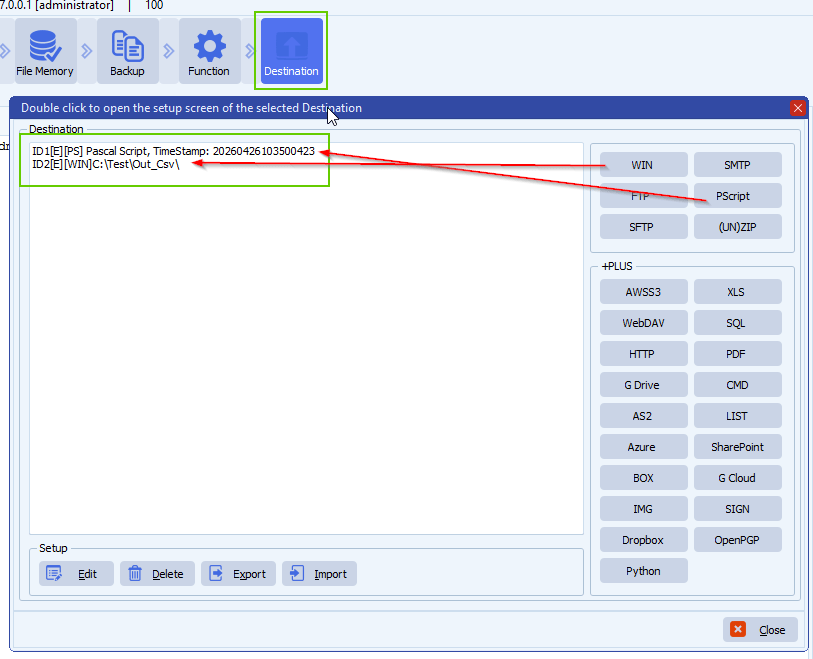
- Destination Setup
- First Destination MUST be our Pascal Script option
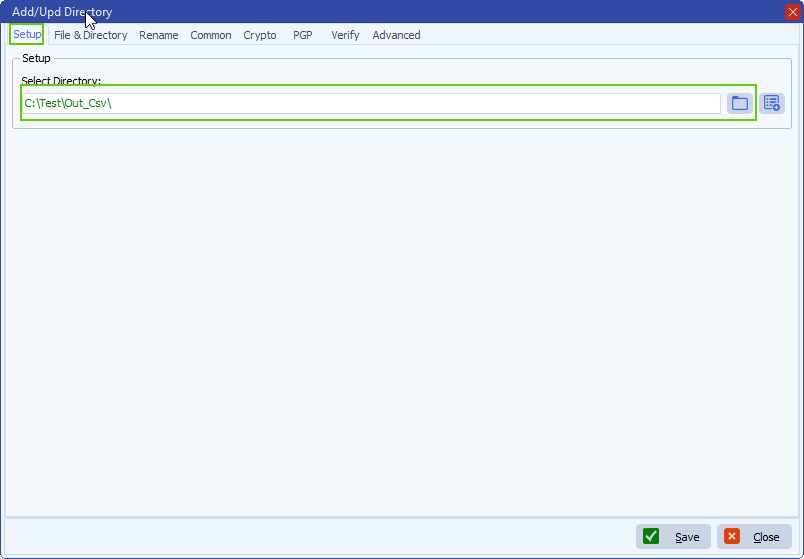
- Second Destination is the destination folder of moved log files
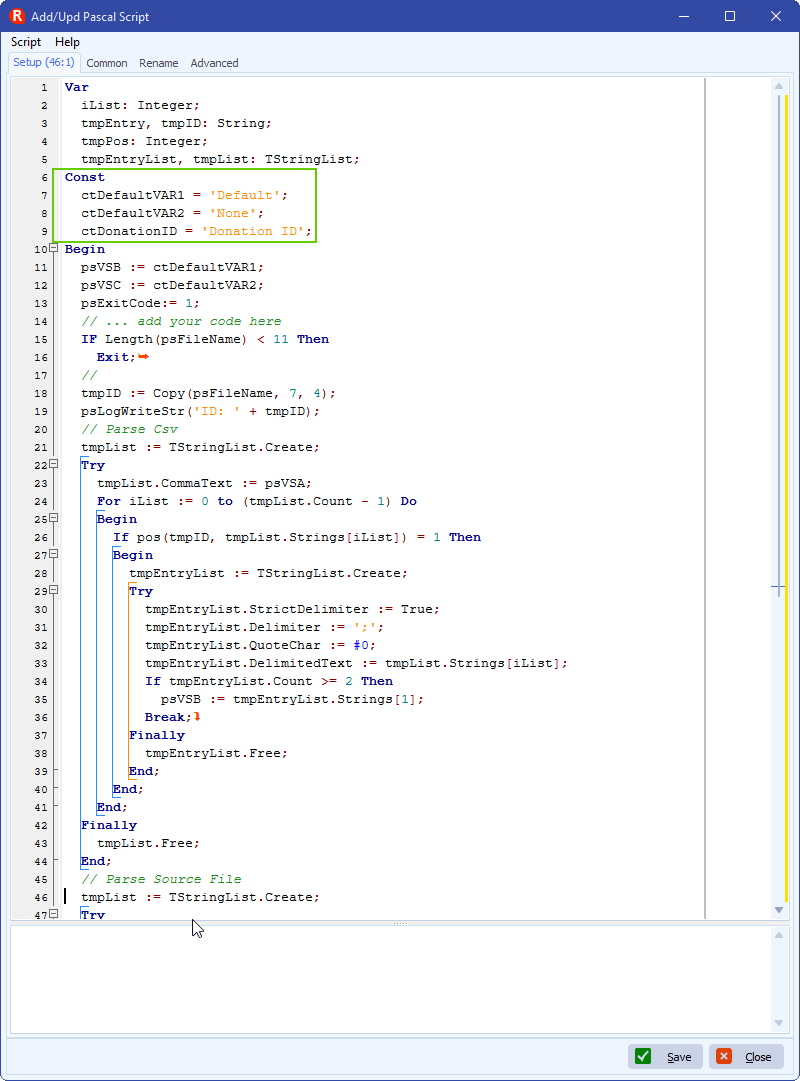
- First Destination: Pascal Script
- You can download the script here
- The script will strip an ID from the source filename (Char 7 – 10)
- This ID will be used to get the ‘AssetID’ from the csv file
- AssetID will be used to parse the source file for the ‘Donation ID’ information
- / and \ will be replaced with a space
- Invalid directory char will be removed
- Second Destination: We used a Windows Folder but can be any other destination type
- Adjust ‘Create Subdir, opt.’ to: %VSB\%SFS
- %VSB var contains the AssetID parsed from the csv file
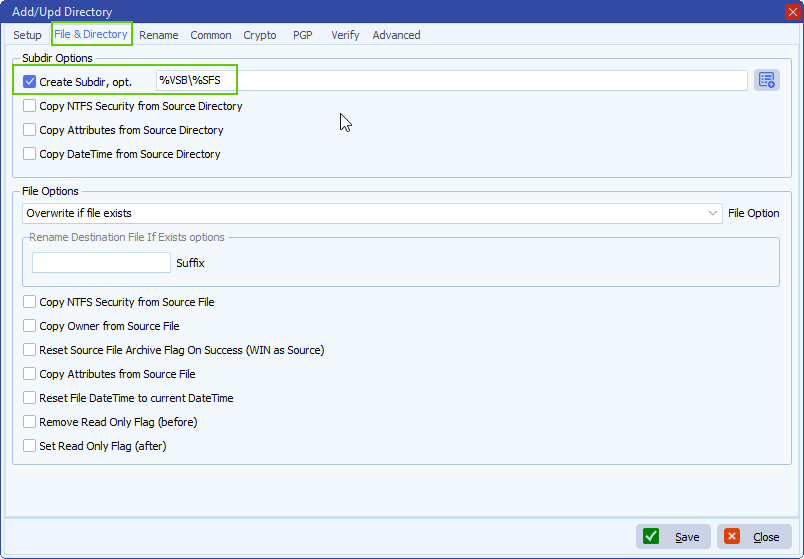
- Enable ‘Rename Files during Copy/Move’ option:
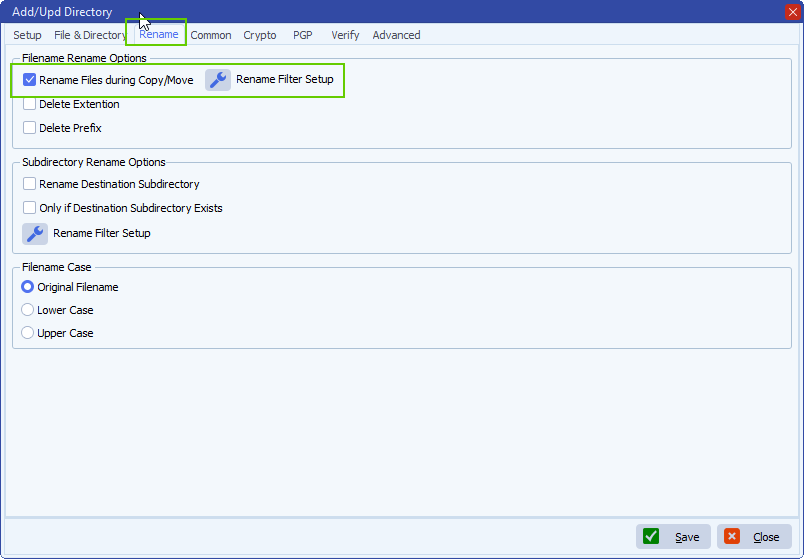
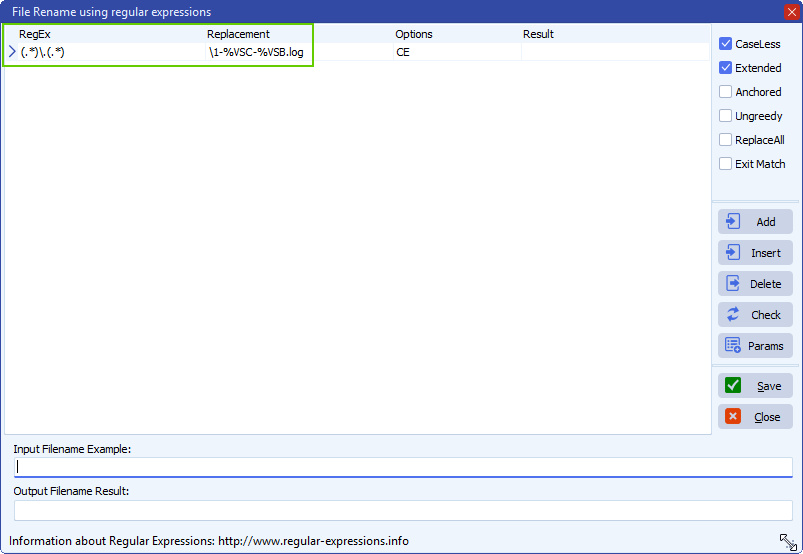
- File Rename setup:
- RegEx: (.*)\.(.*)
- Replacement: \1-%VSC-%VSB.log
- Filename will be renamed and extension will change from .log to .txt
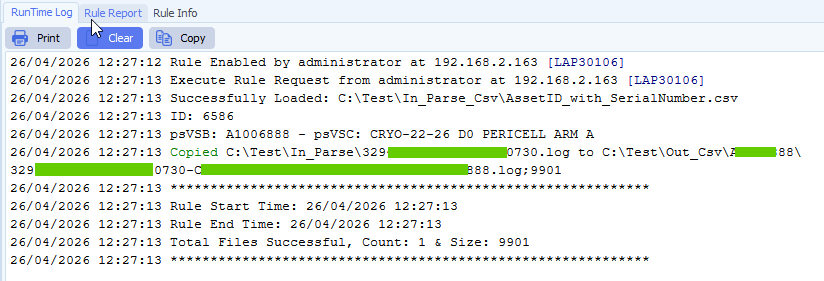
- RunTime Log result:
If you need any help about this ‘source file parsing’ request, please let us know.
Best Regards,
Limagito Team
#csv #managedfiletransfer #filetransfer #filemanagement #limagito