File Mover Blog

  • 14 Apr

    How to use Microsoft Graph API with OneDrive as source and destination

    Using Microsoft Graph API with OneDrive

    On request we added support for Microsoft Graph as API method in version v2026.4.14.0.

    Limagito FileMover Setup

    • Setup
      • Graph Url is fixed, should be https://graphMicrosoft.com
      • Set Directory, in our example: /Attachements
      • Select the Auth Type you will be using, check the previous blog articles:
        • Online Authentication using Client Credentials without User Dialog
          • This means ‘Application permissions’ in your Azure App Registration
        • OAuth 2.0 authorization code flow
          • This means ‘Delegated permissions’ in your Azure App Registration


    • The following example uses ‘Online Authentication using Client Credentials without User Dialog’
      • In this case, you need to add the User Principal Name (email address, example: user@contoso.com)
      • Do not forget to add Graph Application permissions in your Azure App Registration

    limagito file mover Microsoft Graph API with OneDrive

    • OAuth2 setup:
      • Enable ‘Code Challenge’
      • Enable ‘Include Nonce’
      • Leave ‘Authorization Endpoint URL’ empty, not used with ‘Online Authentication using Client Credentials without User Dialog’
      • Set ‘Token Endpoint URL’
        • https://login.microsoftonline.com/%realm/oauth2/v2.0/token
        • %realm will be replaced by the Realm value = Directory (tenant) ID. You can also enter the full URL including the Tenant.
      • Enter your Client ID and Client Secret
        • Azure > App Registrations > Select the App you created > Use ‘Application (client) ID’ as Client ID in Limagito OneDrive OAuth2 setup
      • Azure > Certificates & Secrets > Client secrets > Use ‘Value’ field as Client Secret in Limagito OneDrive OAuth2 setup
      • Set ‘Scope’ to: https://graph.microsoft.com/.default
        • Don’t forget to add “File.ReadWrite” to the Permissions in your Azure setup.
          • Permissions Type must be Delegated with “OAuth 2.0 authorization code flow”
          • Permissions Type must be Application with “Online Authentication using Client Credentials without User Dialog”
          • FYI: Delegated permissions, also called scopes, allow the application to act on behalf of the signed-in user.
      • Leave Resource empty
      • Leave Response Mode empty to omit the default response_mode “query” param.
      • Leave Response Type empty, this way the default value “code” will be used.
      • Redirect URI is not used with ‘Online Authentication using Client Credentials without User Dialog’
      • When using %realm in the ‘Authorization or Token Endpoint URL’
        • Please set ‘Realm’ to your Tenant of Tenant_ID

    limagito file mover onedrive oauth2 setup

    If you need any help about this ‘microsoft Graph API with OneDrive’ option, please let us know.

    Best Regards,

    Limagito Team

    #onedrive #managedfiletransfer #filetransfer #filemanagement #limagito

    By Limagito-Team OneDrive ,
  • 11 Apr

    How to use Microsoft Graph API with SharePoint as source and destination

    Using Microsoft Graph API with SharePoint

    On request we added support for Microsoft Graph as API method in version v2026.4.11.0. So, from this version on we support:

    • Sharepoint REST API (legacy)
    • Microsoft Graph API

    Limagito FileMover Setup

    limagito file mover sharepoint authentication type

      • Set “Microsoft Graph API’ as API Method

    limagito file mover microsoft Graph API with SharePoint

    • OAuth2 setup:
      • Enable ‘Code Challenge’
      • Enable ‘Include Nonce’
      • Set ‘Authorization Endpoint URL’
        • https://login.microsoftonline.com/%realm/oauth2/v2.0/authorize
        • %realm will be replaced by the Realm value = Directory (tenant) ID. You can also enter the full URL including the Tenant.
      • Set ‘Token Endpoint URL’
        • https://login.microsoftonline.com/%realm/oauth2/v2.0/token
        • %realm will be replaced by the Realm value = Directory (tenant) ID. You can also enter the full URL including the Tenant.
      • Enter your Client ID and Client Secret
        • Azure > App Registrations > Select the App you created > Use ‘Application (client) ID’ as Client ID in Limagito SharePoint OAuth2 setup
      • Azure > Certificates & Secrets > Client secrets > Use ‘Value’ field as Client Secret in Limagito SharePoint OAuth2 setup
      • Set ‘Scope’ to: openid offline_access https://graph.microsoft.com/.default
        • Don’t forget to add “Sites.ReadWrite.All” to the Permissions in your Azure setup.
          • Permissions Type must be Delegated with “OAuth 2.0 authorization code flow”
          • Permissions Type must be Application with “Online Authentication using Client Credentials without User Dialog”
          • FYI: Delegated permissions, also called scopes, allow the application to act on behalf of the signed-in user.
        • An alternative could be: openid offline_access https://graph.microsoft.com/Sites.ReadWrite.All
      • Leave Resource empty
      • Leave Response Mode empty to omit the default response_mode “query” param.
      • Leave Response Type empty, this way the default value “code” will be used.
      • The Redirect URI should be http://localhost/   (and not https://localhost/)
        • Be sure to add the redirect URI in Azure too, combined with the Redirect Port in the example it would be:  http://localhost:3017
        • Check if you selected “Web” as Redirect URI Type in Azure (do not use mobile & desktop or SPA)
      • RedirectPort, we used 3017
      • When using %realm in the ‘Authorization or Token Endpoint URL’
        • Please set ‘Realm’ to your Tenant of Tenant_ID

    limagito file mover sharepoint oauth2 setup

    Azure App Registrations

    • Register an application > + New registration

    limagito file mover azure app registrations

    • Set Name, Single tenant and Web as Redirect URI

    limagito file mover azure app registrations

    • You’ll need the Application (Client) ID in the OAuth2 setup of Limagito File Mover. Also Directory (Tenant) ID will be used.

    limagito file mover azure app registrations

    • Depending on the ‘Authentication Type’ in Limagito File Mover, you’ll need a Redirect URI.

    limagito file mover azure register an application

    • It is http://localhost:3017 and NOT https://

    limagito file mover azure register an application

    • Summary:

    limagito file mover azure register an application

    limagito file mover azure register an application

    limagito file mover azure register an application

    • Add a new client secret:

    limagito file mover azure app registrations

    • Set Client secret description and expire period:

    limagito file mover azure app registrations

    • IMPORTANT: we’ll need the Value as Client Secret in the OAuth2 setup of Limagito File Mover. The Secret ID is NOT needed.

    limagito file mover azure app registrations

    • Add API Permissions, two types of permissions:
      •  Application permissions allow the app to access data on its own, without a signed-in user. The app acts as itself using its own identity. This is used with client credentials authentication (client ID + secret or certificate). The app has access to all resources that the permission grants — for example, Sites.ReadWrite.All as an application permission gives access to all SharePoint sites in the tenant.
      • Delegated permissions allow the app to act on behalf of a signed-in user. The app can only access what the user themselves can access. This is used with the OAuth 2.0 authorization code flow where a user signs in through a browser dialog. For example, Sites.ReadWrite.All as a delegated permission gives the app access only to the SharePoint sites that the signed-in user has permission to use.
      • In short: application = the app acts as itself (no user), delegated = the app acts as the user (user must sign in once during OAuth2 setup).

    limagito file mover azure app registrations

    • Select Microsoft Graph:
      • First option is it to use Application permissions: we added Sites.ReadWriteAll

    limagito file mover azure app registrations

    limagito file mover azure app registrations

    • Select Microsoft Graph:
      • Second option is it to use Delegated permissions: again we added Sites.ReadWriteAll

    limagito file mover azure app registrations

    • Grant admin consent for the choosen Application permissions:

    limagito file mover azure app registrations

    • Confirm

    limagito file mover azure app registrations

    • Permissions result:

    limagito file mover azure app registrations


    If you need any help about this ‘microsoft Graph API with SharePoint’ option, please let us know.

    Best Regards,

    Limagito Team

    # sharepoint #managedfiletransfer #filetransfer #filemanagement #limagito

    By Limagito-Team SharePoint ,
  • 06 Apr

    How to use day of the week folders based on the filename

    Using day of the week folders

    Q: I would like to sort my files based on the filename. The first 8 char contain the date that has to be used. The format is YYYYMMDD (Year = 4 char, Month = 2 char and Day 2 = char).

    A: This is possible using our Pascal Script option. We’ve attached some screenshots to get you started.

    • We used a Windows folder as Source:

    limagito file mover windows folder as source

    • File Filter Setup:

    limagito file mover filename include filter

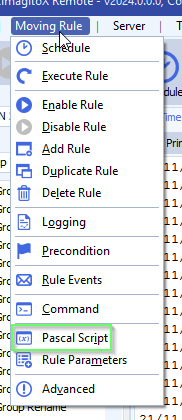
    • Open our Pascal Script option:

    limagito file mover pascal script option

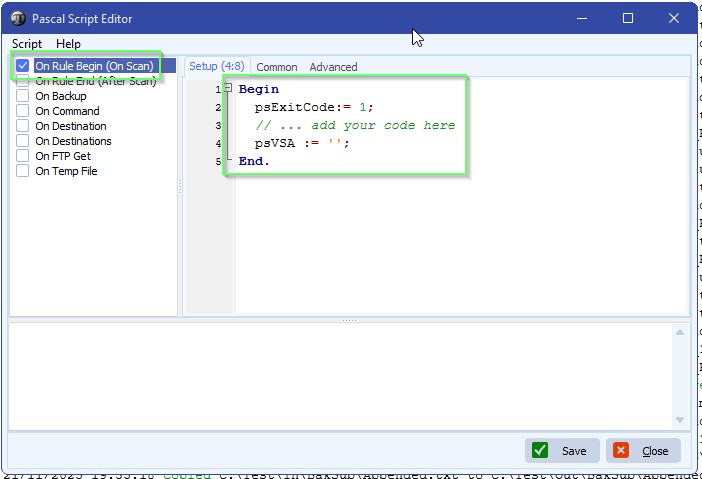
    • Enable and add the following ‘On Destination’ script:
      • The script will strip the date part from the filename and will check the day of the week
        • Corresponding day of the week will go into the %VSA (Var String A) parameter which will be used in the Destination setup
    Var
      tmpStr: String;
      tmpDate: TDateTime;
      tmpDays: array[1..7] of string;
    Const
      ctDateFormat = 'YYYYMMDD';
      ctDateFormatLen = 8;
      ctDateSeparator = #0;
    Begin
      tmpDays[1] := 'Monday';
      tmpDays[2] := 'Tuesday';
      tmpDays[3] := 'Wednesday';
      tmpDays[4] := 'Thursday';
      tmpDays[5] := 'Friday';
      tmpDays[6] := 'Saturday';
      tmpDays[7] := 'Sunday';
      // Default Result = Skip File
      psExitCode:= 0;
      psVSA := '';
      // ... add your code here
      tmpStr := Copy(psFileName, 1, ctDateFormatLen);
      If StrToIntDef(tmpStr, -1) <> -1 Then
      Begin
        Try
          tmpDate := psStrToDate(tmpStr, ctDateFormat, ctDateSeparator);
          psVSA := tmpDays[DayOfTheWeek(tmpDate)];
          // Successful Result
          psExitCode := 1;
          // Debug
          psLogWrite(1, '', psFileName + ' will go into subfolder: ' + psVSA);
        Except
          psLogWrite(1, '', psFileName + ' conversion exception of date part, file will be skipped');    
        End;
      End
      Else
      Begin
        psLogWrite(1, '', psFileName + ' does not start with a valid date, file will be skipped');
      End;
    End.
    

    limagito file mover day of the week folders

    • Destination Setup:

    limagito file mover windows folder as destination

    • Important, adjust the default ‘Create Subdir option’, add %VSA (%VSA contains the day of the week):

    limagito file mover day of the week folders

    • RunTime Log Result:

    limagito file mover runtime log

    If you need any help about this ‘day of the week folders’ option, please let us know.

    Best Regards,

    Limagito Team

    #managedfiletransfer #filetransfer #filemanagement #limagito

1 2 3 4 170
SEARCH